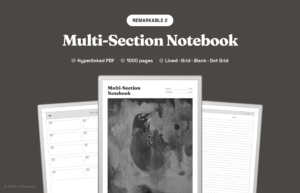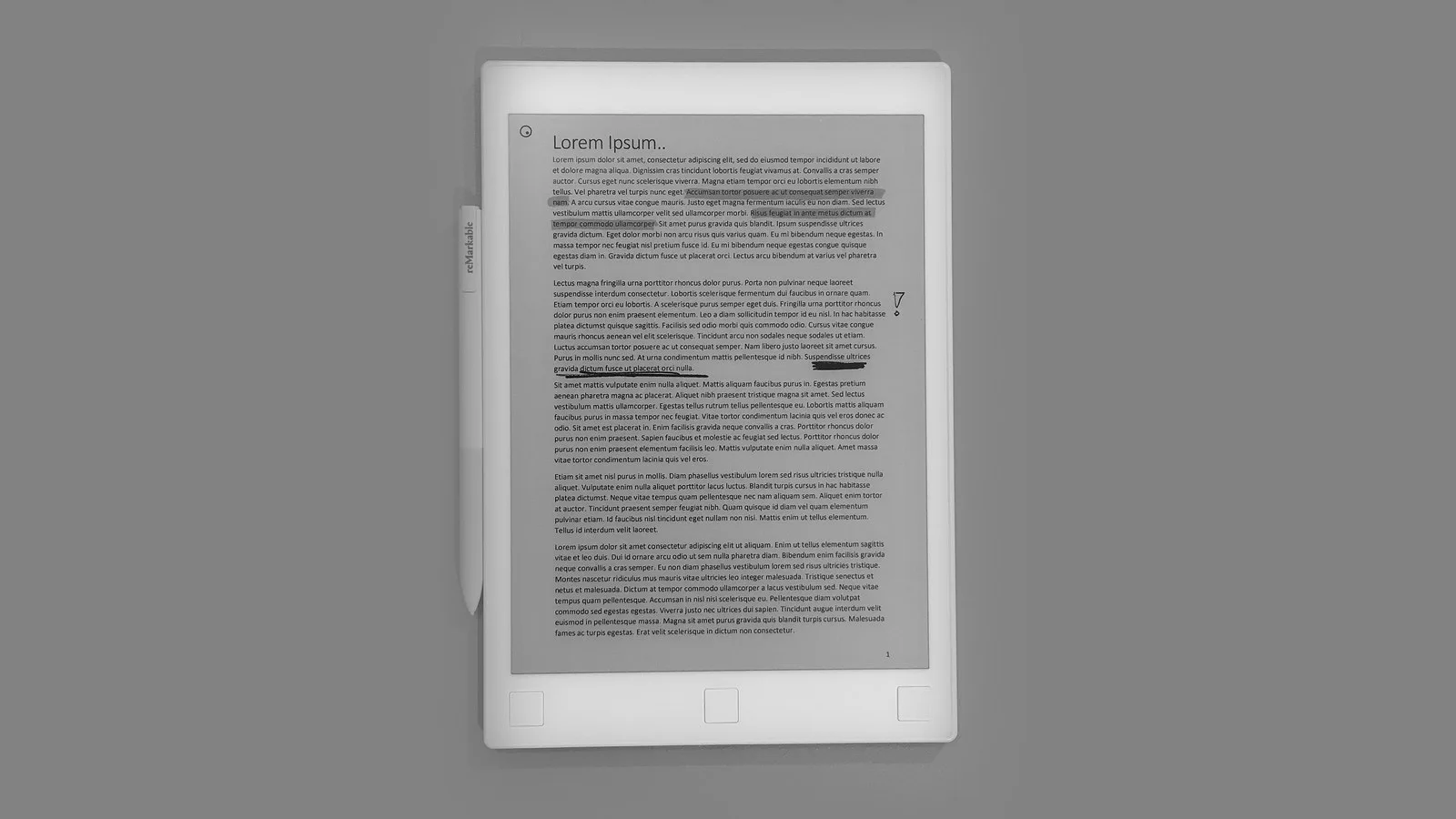
reMarkable templates come in two kinds: the built-in page backgrounds that ship on the tablet, and PDF templates you import yourself. The built-in ones are free and fine for everyday notes. PDF templates are where you get planners, Cornell notebooks and linked journals with tabs, because reMarkable doesn't let you add your own templates to its menu. Here's how both work, how to put a PDF template on your tablet, and which ones are worth starting with.
The built-in templates on your reMarkable
Every reMarkable comes with dozens of page templates. reMarkable's own help page sorts them into five groups: All, Creative, Grids, Life/organize and Lines. You'll find lined and dotted pages, grids, music sheets, a Cornell layout and planning layouts under Life/organize.
You can pick one when you make a notebook, or swap it later:
- New notebook: in My files, tap the notebook icon, choose a recent template or tap View all, pick one, then tap Create. You can choose portrait or landscape here too.
- Existing page: open the notebook, tap the Layers icon, then Template, and pick a new one.
These cover most plain note-taking. Where they stop is structure: each one is a single page design, so you don't get a linked index or a notebook that's already split into parts for work, home and study.
Can you add your own reMarkable templates?
Not officially. reMarkable's templates help page says it plainly: "Custom templates can't be installed or added to the built-in Templates menu."
reMarkable's own answer is to import a PDF instead. A PDF template isn't a background you apply to a notebook. It's its own document, with every page already drawn, and you write right on top of it. That sounds like a downside, but for planners it's the better setup anyway, since the dates, tabs and links all live inside the file.
There's also Methods, a set of extra templates, planners and workbooks from reMarkable. Methods comes with a Connect subscription, which costs $3.99 a month or $39.90 a year in the US on reMarkable's pricing page. You don't need Connect to use PDF templates.
What PDF templates add
A good PDF template does three things the built-in pages can't.
- Links. Tap a month, a section name or an index line and you land on that page. reMarkable added tappable links inside PDFs in software update 2.6, back in 2021.
- Structure. A daily planner has every date printed. A Cornell notebook has the cue column and summary box on every page. A bullet journal comes with an index, a future log and collections already set up.
- A finished look. Covers, page numbers and headers stay put, so the notebook feels like one thing instead of a stack of loose pages.
We cover links in more depth in our guide to using a hyperlinked PDF planner on reMarkable.
How to put a PDF template on your reMarkable
Getting a template onto the tablet takes about a minute. Pick whichever way matches where the file is right now:
- From a computer: drag the PDF into the reMarkable web app or the desktop app. The web app takes files up to 100 MB.
- From your phone: open the PDF in the reMarkable mobile app.
- From the cloud: connect Google Drive, Dropbox or OneDrive once, then import the file from the tablet itself. This doesn't need Connect.
The file shows up in My files once the tablet syncs. Our step-by-step guide to PDFs on reMarkable walks through each method, with the limits to watch for.
One tip from reMarkable's own help page: duplicate the PDF before you start writing on it. That way you always have a clean copy, which matters for an undated planner you might want to start again later.
Writing on a template and using its links
Open the template from My files and write anywhere with the Marker. Your writing sits on its own layer above the PDF, so the printed lines and dates never get smudged or erased.
To move around, tap a link instead of swiping through hundreds of pages. In a planner that usually means tapping a month on the year page, then a day. In a notebook it means tapping a section in the index, then tapping the header to get back.
Need more room? Open the page overview and choose Add or delete pages to add a blank page where you need it. Since reMarkable's 3.16 update, those added note pages can use a built-in template too.
What makes a good template for your model
Screen size matters more than people expect. reMarkable makes tablets in three shapes, and a PDF made for one looks wrong on another, with empty bars around the page or tiny text.
- reMarkable 2 and Paper Pure: 10.3 inch, black and white. reMarkable now lists the reMarkable 2 as discontinued and points to the Paper Pure.
- Paper Pro: 11.8 inch, with a color screen.
- Paper Pro Move: 7.3 inch, a taller and narrower color screen.
Look for a template sized to your exact model. After that, check for real links (not just page numbers), a sensible page count, and a layout that matches how you actually write. A year of daily pages is plenty. Two thousand blank pages just means more scrolling.
We make all our reMarkable templates in a separate version for each model: reMarkable 2, Paper Pure, Paper Pro and Paper Pro Move.
Which templates to start with
If you're not sure where to begin, start with what you'll open every day.
- For planning: a 2027 daily planner with linked months and days, so today is two taps away.
- For classes and meetings: a Cornell notes notebook, with the cue column and summary box drawn on every page.
- For journaling: a bullet journal with a linked index. Our guide to a bullet journal on reMarkable shows a simple setup.
- For habits and reading: a habit tracker or a reading journal.
- For something your own: build a custom notebook or a custom planner with the sections and pages you pick.
Want to try before you buy? Grab a few free templates and see how a linked PDF feels on your tablet first.
Questions
Does reMarkable have a calendar template?
The built-in set has planning layouts under Life/organize. For a calendar with every date printed and linked months, use a PDF planner.
How do I create my own reMarkable templates?
reMarkable doesn't support adding your own templates to its menu. The official way is to make your page as a PDF and import it. If you'd rather not design one yourself, a builder like our custom notebook lets you pick the layout and makes the PDF for you.
Do I need Connect to use templates?
No. The built-in templates and imported PDF templates both work without a subscription. Connect adds Methods, reMarkable's own extra templates and planners.
Can I use one template file on every reMarkable?
It will open, but it won't fit well. A file made for the 10.3 inch screen leaves gaps on the Paper Pro Move, and the other way around. Use the version made for your model.
Where do I find good reMarkable templates?
Our reMarkable templates are hyperlinked PDF notebooks, planners and puzzle books, each made for your exact model, with covers hand-painted by Rabia. Pick your tablet, download the file and import it in a minute.
Featured photo: reMarkable tablet and pen by Sauer202, CC BY-SA 4.0, via Wikimedia Commons. Converted to grayscale and placed on a wider background; our version is shared under the same license.