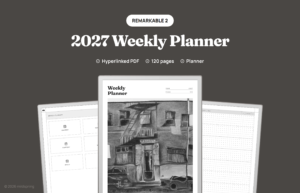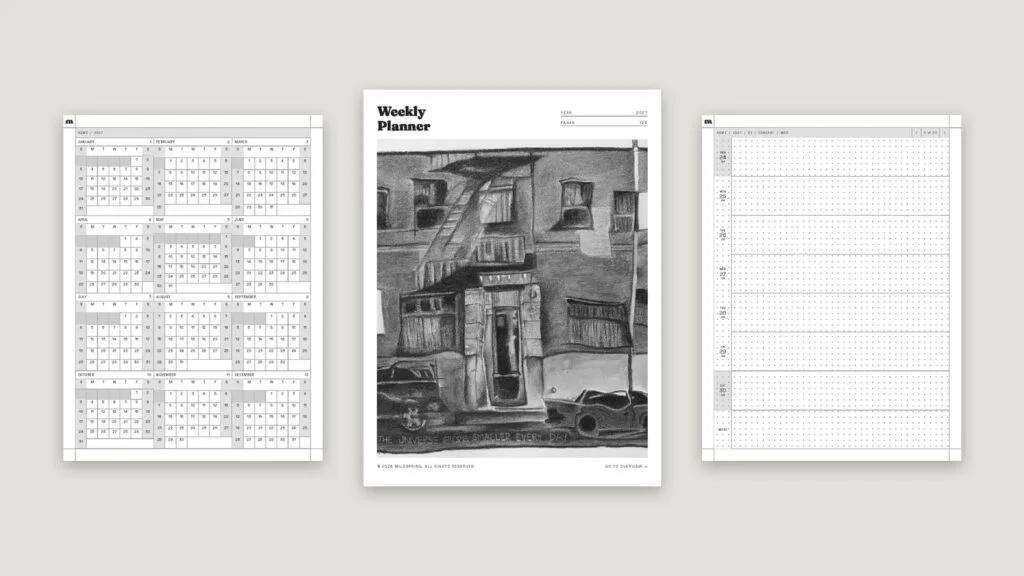
Getting a reMarkable PDF onto your tablet takes about a minute, and there are four ways to do it: the web app at my.remarkable.com, the desktop app, the mobile app, or a cloud service like Google Drive. Once it’s there, you can read it, write on any page with the Marker, and tap its links to jump around. Here’s how each method works, the limits to know about, and what changes when the PDF is a notebook or planner instead of a document.
What a reMarkable PDF can do
A PDF on reMarkable behaves a lot like a printed page you can write on. You open it from My files, read it page by page, and write or draw on top with the Marker, the same as in a notebook.
Links work too. reMarkable added support for navigation links inside PDFs in software update 2.6, which started rolling out in March 2021, and later updates brought PDF links to the desktop and mobile apps as well. That matters if you use a planner or notebook with a linked index: tap a month or a section name and you land on that page.
Import a PDF with the web app (my.remarkable.com)
The web app is the quickest way if you’re at a computer and don’t want to install anything.
- Sign in at my.remarkable.com.
- Open My files.
- Drag your PDF onto the page, or choose Import and pick the file.
- Wait for it to sync, then find it under My files on your tablet.
The web app takes PDF, EPUB, JPG and PNG files. Images get turned into PDFs when you import them. The one limit to watch is size: the web app accepts files up to 100 MB.
Import with the desktop or mobile app
The reMarkable desktop app works the same way. Click Import at the top of the app and choose a file, or drag the PDF straight into the app window. It uploads to your reMarkable cloud and shows up on the tablet once it syncs.
The mobile apps handle PDFs and EPUBs too, which is handy when the file lands in your email or downloads folder on your phone. And if your PDF is bigger than 100 MB, reMarkable’s own advice is to use the desktop or mobile app instead of the web app.
Import from Google Drive, Dropbox or OneDrive
If your files already live in the cloud, you can pull them onto the tablet without a computer. First, connect the service once at my.remarkable.com. After that, on the tablet:
- Tap the menu in the upper-left corner.
- Tap Integrations, then pick Google Drive, Dropbox or OneDrive.
- Find your PDF, press and hold it, then tap Import.
The file is copied into My files, so you can keep working on it offline. You don’t need a Connect subscription to import standard PDFs this way. Connect only comes in if you want Word files or Google Docs turned into editable notebooks.
What about web pages and articles?
reMarkable’s Read on reMarkable extension for Google Chrome sends web pages to your tablet, but it doesn’t send them as PDFs. It sends an article as an EPUB, which you can read and annotate, or as an editable notebook, which needs Connect. If you want an exact PDF copy of a page, print it to PDF from your browser and import that file with one of the methods above.
Which import method should you use?
All four methods end in the same place, My files on your tablet, so pick the one that matches where the file is right now.
- The file is on your computer: drag it into my.remarkable.com or the desktop app. It’s the fastest route for a one-off file.
- The file is on your phone: use the mobile app, so you don’t have to email it to yourself first.
- The file is in Google Drive, Dropbox or OneDrive: use the integration from the tablet itself. It’s the only method that doesn’t need another device once it’s set up.
- The file is huge: anything over 100 MB, like a scanned textbook, goes through the desktop or mobile app.
If you import the same reMarkable PDF again, for example a fresh copy of a planner for next year, it arrives as a new file in My files. Give the new copy a clear name, like the year, so you always open the right one.
Using PDF notebooks and planners on reMarkable
A PDF doesn’t have to be something you read. Plenty of people import notebooks and planners as PDFs: a daily planner, a Cornell notes notebook, a bullet journal with a linked index. You write on them the same way you’d write on a blank notebook, but the pages, sections and calendar are already drawn for you.
A few things make a planner PDF much nicer to use:
- Sized for your screen. A file made for your model fills the display. One made for a different screen shape leaves empty bars around the page or shrinks it.
- Linked pages. Tabs, an index and month links let you jump straight to today instead of flipping through hundreds of pages.
- A sensible page count. A year of daily pages is plenty for most people. More pages than you’ll use just means more scrolling past empty ones.
When you start a new year or a new notebook, import a fresh copy. Your old one stays in My files with all your writing in it.
Quick fixes when a PDF won’t behave
- The upload fails on the web app. Check the size. Over 100 MB, switch to the desktop or mobile app.
- The file isn’t on the tablet yet. Make sure the tablet is online so it can sync, then look in My files.
- Links don’t do anything. Update your tablet’s software. Link support arrived in update 2.6, so an old version won’t have it. If links still don’t work, the PDF itself may not contain real links.
- The page looks small or has bars around it. The PDF was made for a different screen size. Look for a version made for your model.
Questions
Do I need Connect to put PDFs on my reMarkable?
No. You can import standard PDFs through the web app, the desktop and mobile apps, and the Google Drive, Dropbox and OneDrive integrations without a subscription.
What’s the biggest PDF I can upload?
Through my.remarkable.com, 100 MB. For bigger files, reMarkable points you to the desktop or mobile app.
Can I write on a PDF on reMarkable?
Yes. Open it from My files and write anywhere with the Marker. Your writing stays with the file on the tablet.
Do hyperlinks work in PDFs on reMarkable?
Yes. Links inside PDFs have worked on the tablet since software 2.6, and they work in the desktop and mobile apps too.
Want a planner or notebook that’s ready for your tablet? Our reMarkable templates are hyperlinked PDFs drawn for the reMarkable 2, Paper Pure and Paper Pro, with linked indexes and tabs, so you can import one in a minute and start writing. If you’re not sure which file fits your tablet, start with the reMarkable Paper Pro templates or pick your model from there. For more detail on imports from reMarkable itself, see its help pages on my.remarkable.com and integrations.