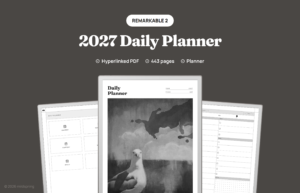
A hyperlinked reMarkable planner is a PDF where the dates, tabs and headers are tappable links, so you can jump from the year to a month, a week or a single day without flicking through hundreds of pages. reMarkable has supported links inside PDFs since software version 2.6 in March 2021, so on any reMarkable with current software, you tap a link and the tablet jumps to that page. This guide walks through how that works, how to get the file onto your tablet, and what to check when something doesn’t behave the way you expect.
We make planners for reMarkable, so we’ll use our 2027 Daily Planner as the example throughout. The screenshots below are real pages from that file. Everything we say about the tablet itself comes from reMarkable’s own help pages, and we link to each one so you can check it.
What a hyperlinked planner actually is
It’s a normal PDF with two extra things built in. The first is link areas: invisible boxes on top of a word or a date that point to another page in the same file. The second is a PDF outline (sometimes called bookmarks or a table of contents), which is a list of named sections that a reader app can show in a menu. Neither one changes how the page looks. They only change what happens when you tap.
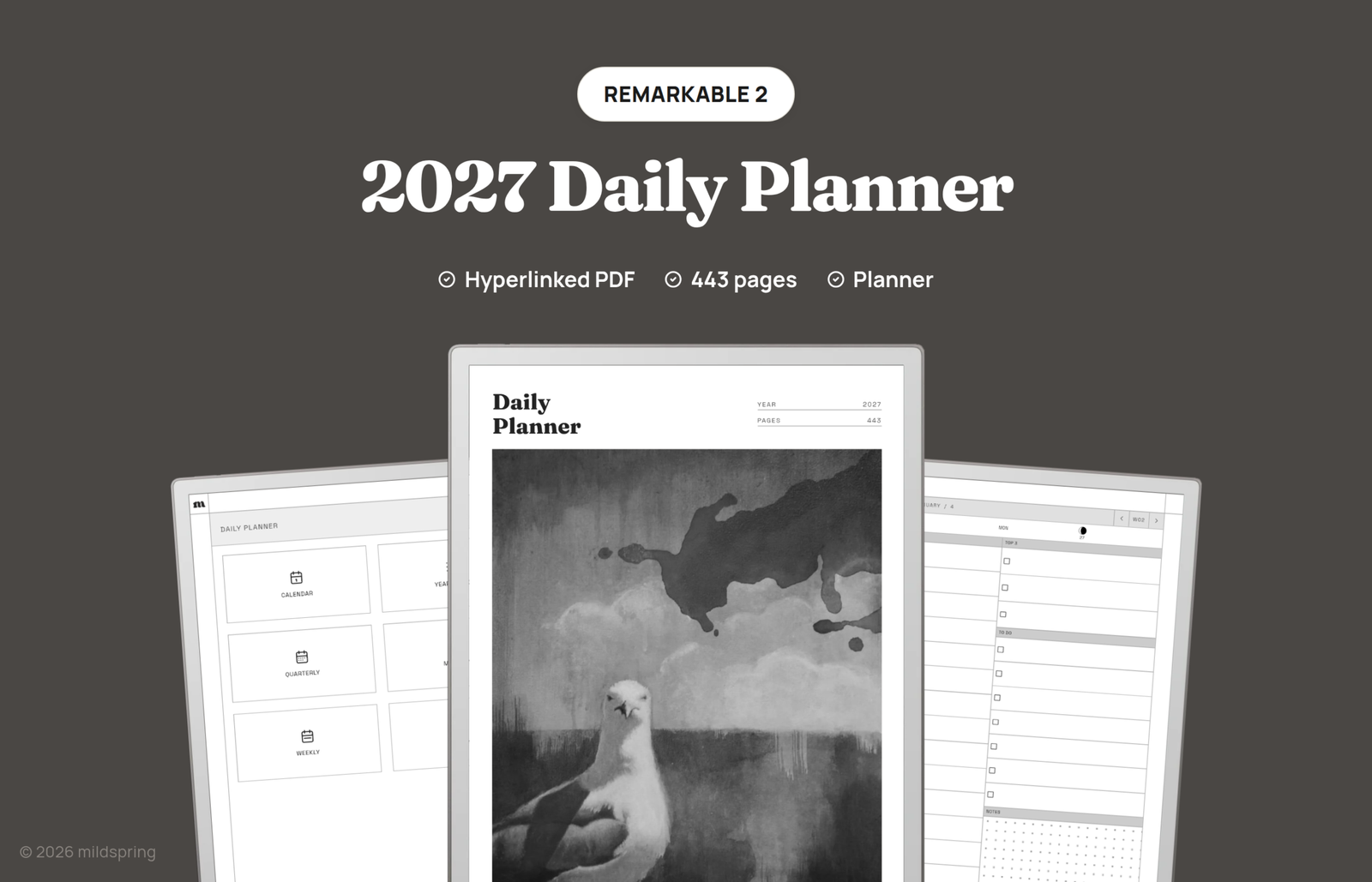
Our 2027 Daily Planner is 443 pages long, and here’s how those pages are laid out, in order:
- A cover and a contents page
- A full-year calendar
- A six-page year index, two months per page
- Four quarter pages
- Twelve month pages
- 53 week pages
- 365 day pages, one for every day of 2027
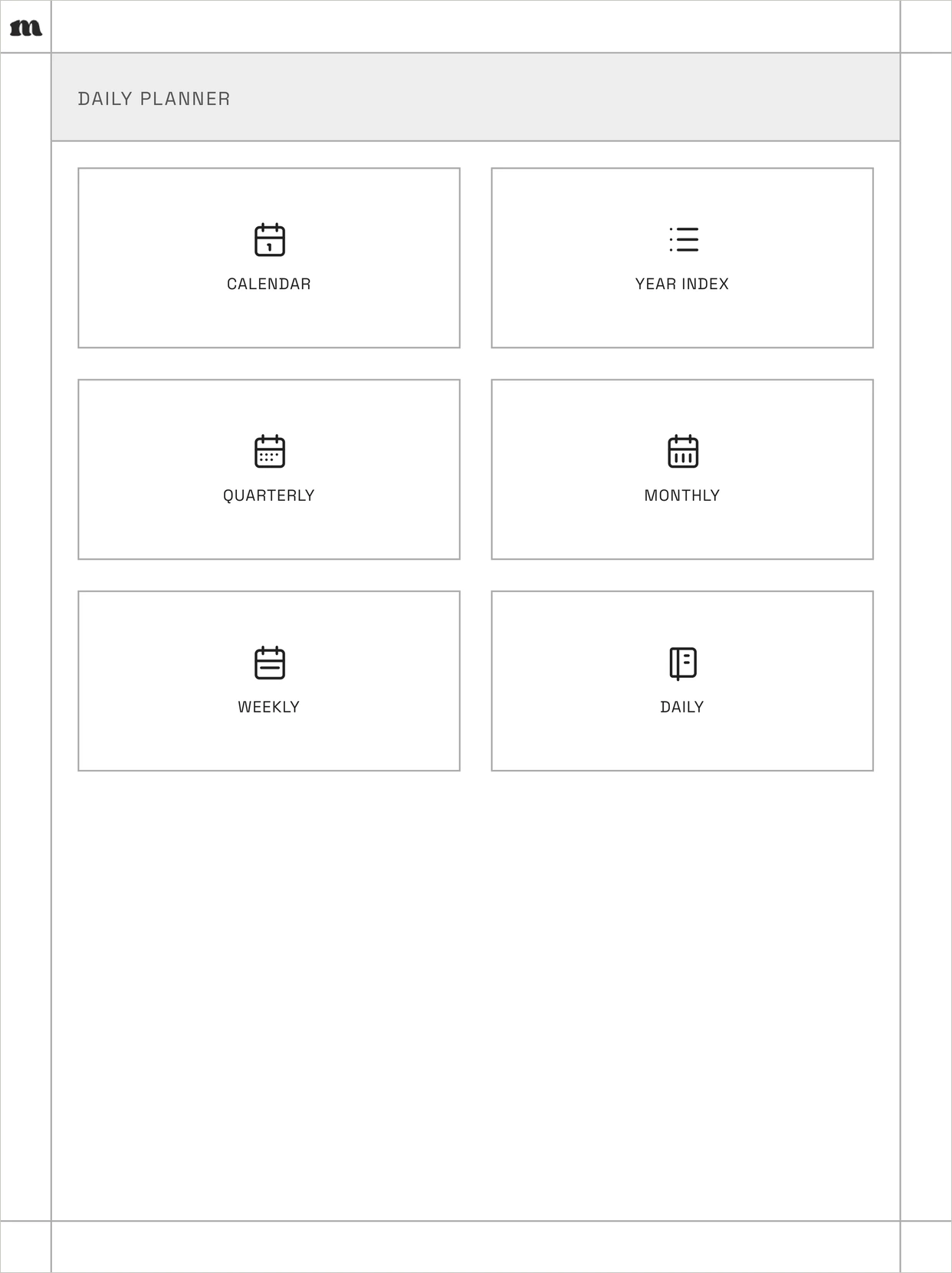
Without links, getting from January 3 to August 14 would mean scrolling past a couple of hundred pages. With links, it’s two or three taps. The contents page is the starting point, with six boxes that open the calendar, the year index, and the quarterly, monthly, weekly and daily sections.
Pick the file made for your tablet
A PDF always keeps its own page shape, and the tablet scales it to fit the screen. If the page shape doesn’t match the screen, you get empty bands at the edges and slightly smaller text. That’s why we make a separate file for each reMarkable screen.
- reMarkable 2 and reMarkable Paper Pure: both have a 10.3 inch screen at 1872 x 1404 pixels and 226 pixels per inch, according to reMarkable’s reMarkable 2 page and Paper Pure feature list. reMarkable now lists the reMarkable 2 as discontinued and points people to the Paper Pure. Our files for these two have a 157 x 210 mm page.
- reMarkable Paper Pro: an 11.8 inch color screen at 2160 x 1620 pixels and 229 pixels per inch, per reMarkable’s Paper Pro specs. Our Paper Pro files have a larger 180 x 240 mm page.
- reMarkable Paper Pro Move: a 7.3 inch screen at 1696 x 954 pixels, which is a taller, narrower 16:9 shape (Paper Pro Move specs). We don’t sell a file sized for the Move yet.
When you buy one of our reMarkable planners, you choose your tablet in the device menu on the product page, and you get the file sized for it.
Getting the PDF onto your reMarkable
reMarkable gives you several ways to import a PDF, and the ones below come from its Importing and exporting files help page. You don’t need a Connect subscription just to import files. reMarkable’s mobile app page says you can view, organize and import files to your tablet without it.
From your phone
On an iPhone, open the PDF (from Files, Mail or a download), tap Share, and pick “Import with reMarkable.” On Android, open the reMarkable app and tap Import. The file goes to your reMarkable cloud and then syncs down to the tablet.
From your computer
In the reMarkable desktop app, you can click Import or just drag the PDF into the app window. There’s also a web app at my.remarkable.com where you can drag the file in or browse for it, which is handy on a computer that doesn’t have the desktop app installed.
Over a USB cable
If you’d rather skip the cloud, turn on the USB web interface on the tablet (Settings, General settings, Storage, USB web interface), plug the tablet into your computer, and open 10.11.99.1 in a browser. From there you can upload the PDF straight to the tablet.
From Google Drive Dropbox or OneDrive
If your PDF is already in one of those, you can pull it in from the tablet itself. reMarkable’s Integrations page says to open Integrations on the tablet, press and hold the file, and tap Import.
Watch the 100 MB limit
reMarkable caps transfers at 100 MB through the USB web interface and the web app, and it says to use the mobile or desktop app for anything bigger. Our 2027 Daily Planner is about 15 MB for reMarkable 2 and Paper Pure and about 20 MB for the Paper Pro, so it fits any of these routes. Planners with lots of images can be much bigger, so the size is worth checking if an upload fails.
How links work in a reMarkable planner
Open the PDF and tap anything that’s linked. reMarkable’s 2.6 release notes describe it as jumping “from one specific page to another with a tap on the screen.” Since version 3.3, links in PDFs also work in the reMarkable mobile and desktop apps, so the same taps work when you’re looking at the planner on your phone or computer.
Two things the official pages don’t spell out. They don’t say whether a tap with the Marker counts the same as a tap with your finger. They also don’t describe a “go back” button after you follow a link. An independent review of the 2.6 update on The eBook Reader describes a link back to your previous spot that disappears after a few seconds, but that’s from 2021 and we can’t confirm it still works the same way today. That’s one reason good planners don’t rely on a back button and build their own way home on every page.
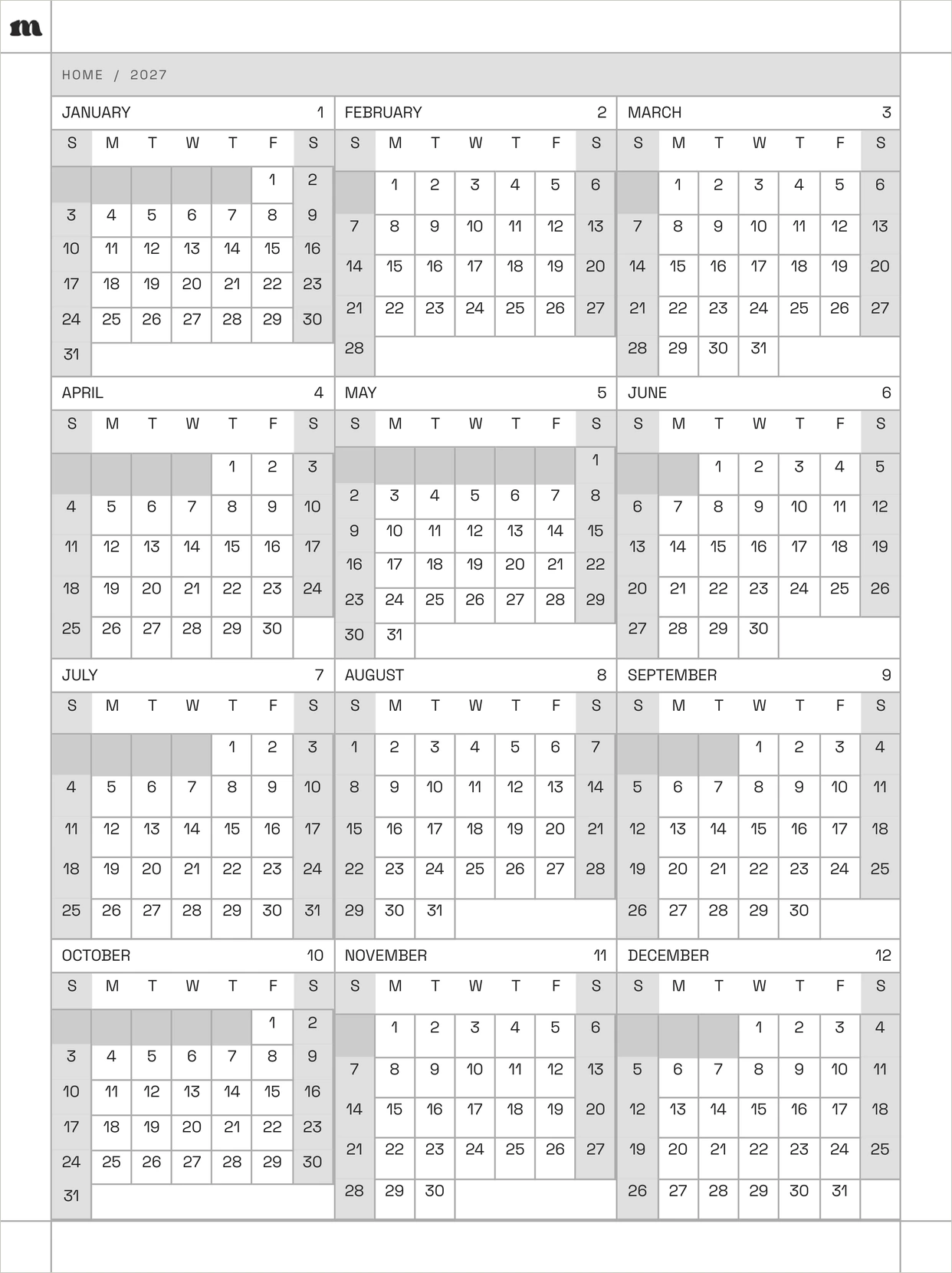
The year calendar
On the year calendar, every month name opens that month’s page and every date opens that day’s page. In our Daily Planner that’s 365 day links on one page, plus the twelve months.
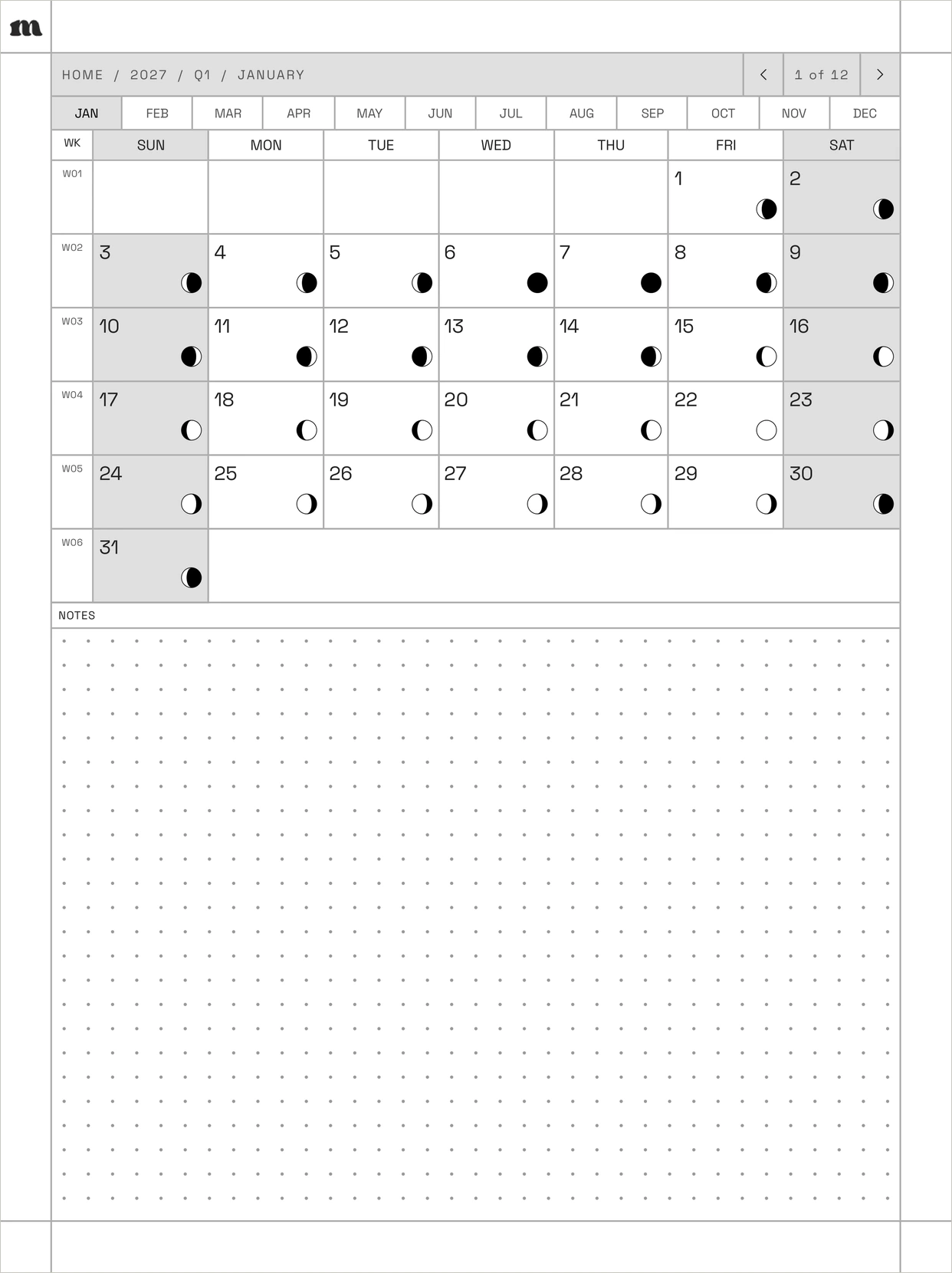
Month pages
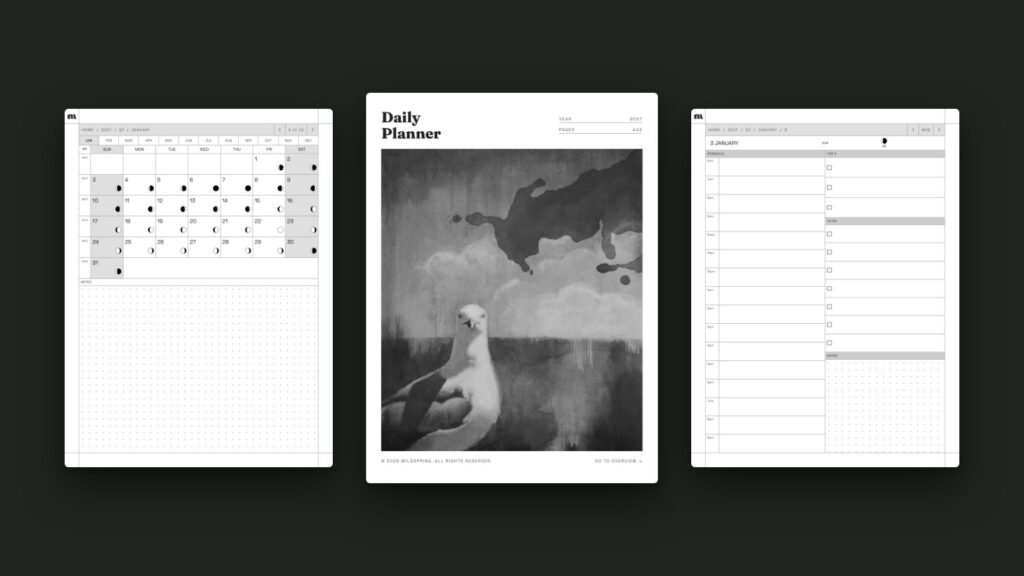
Each month page has a strip of tabs across the top (JAN through DEC) so you can hop between months without going back to the calendar. The weeks start on Sunday, each date links to its day page, and there’s a dot-grid notes area under the calendar.
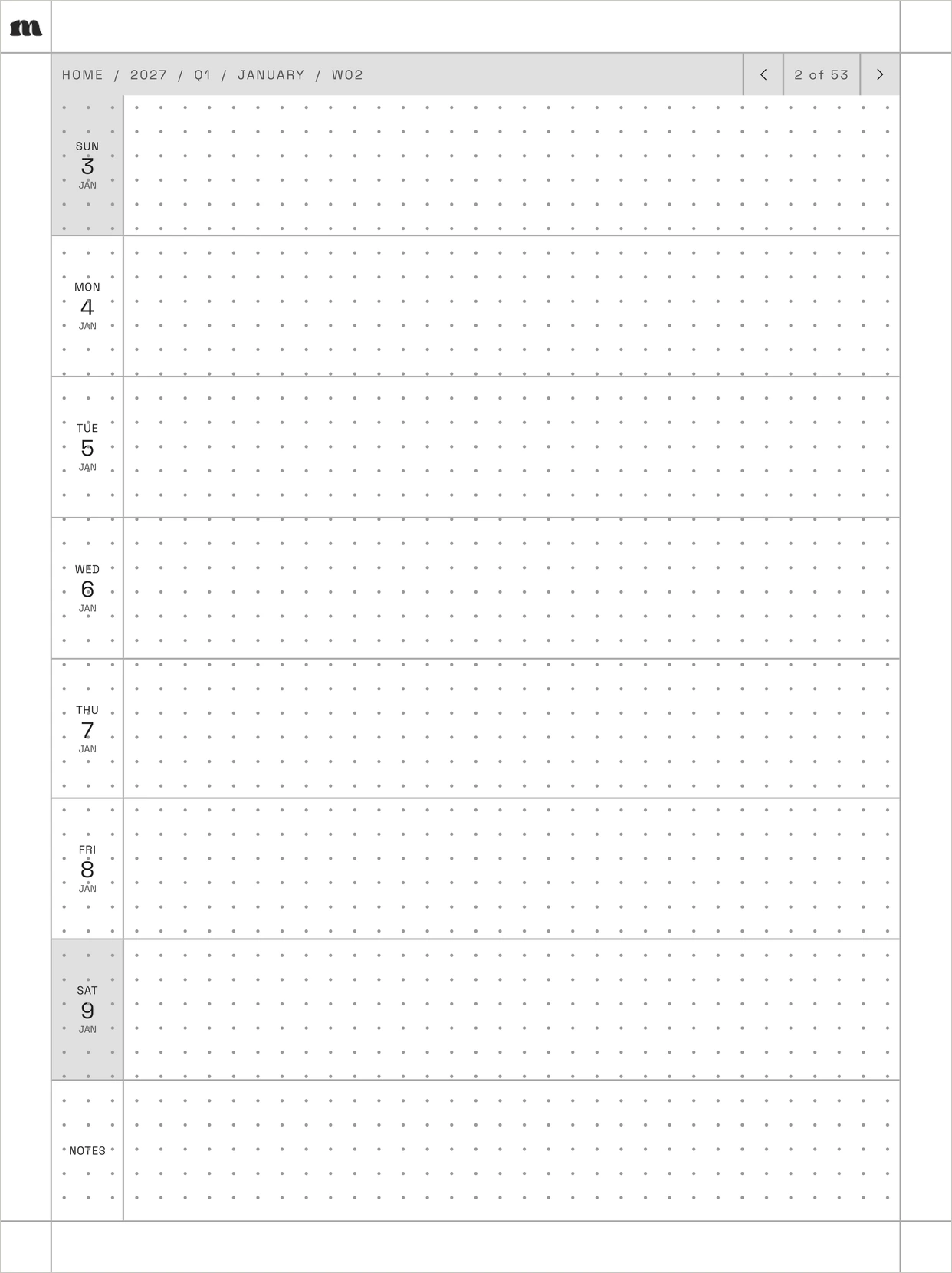
Week pages
A week page lists the seven days down the left side, and tapping a day label (like “MON 4 JAN”) opens that day. The writing space next to each day is dot grid.
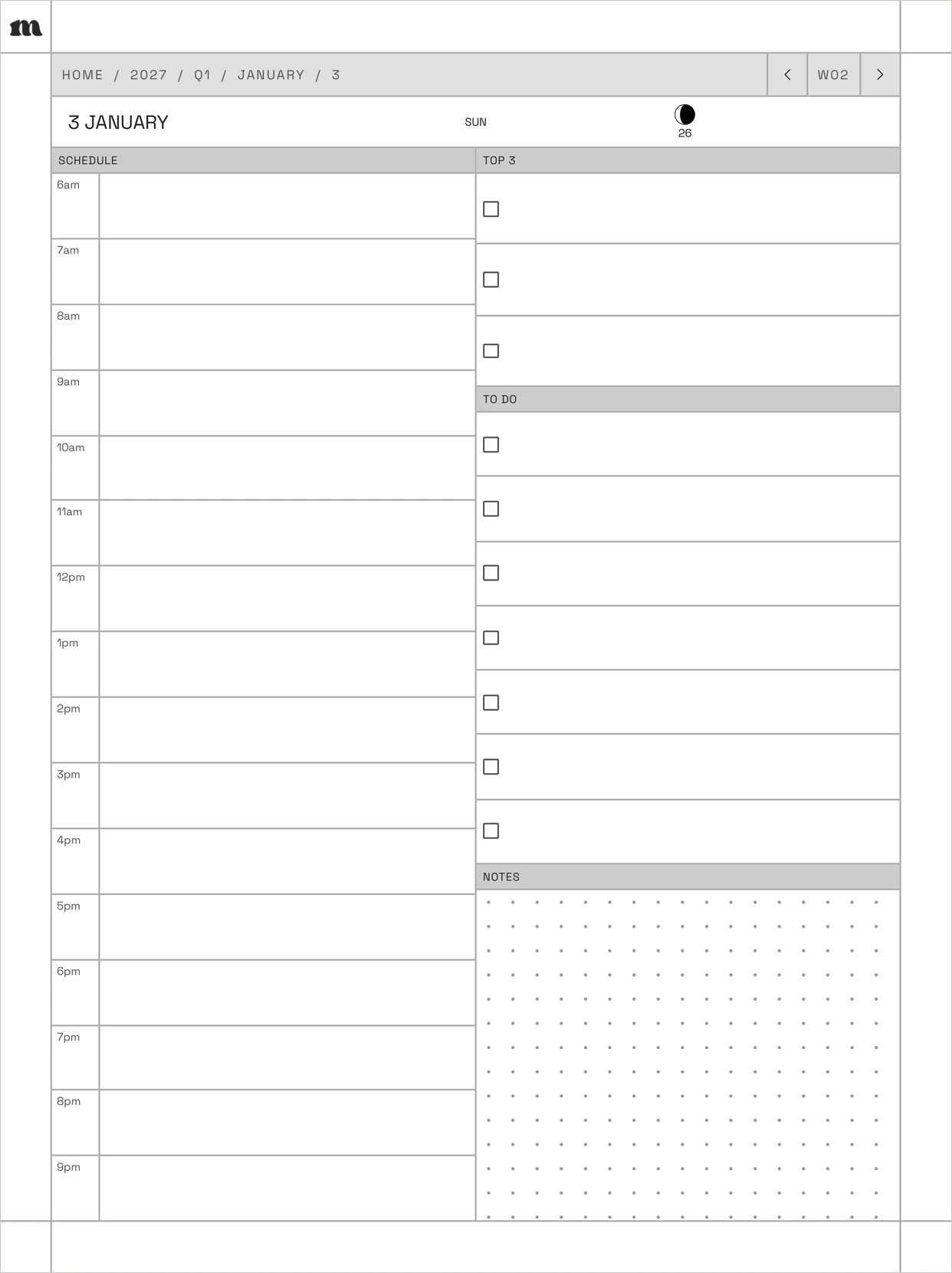
Day pages and the breadcrumb bar
Every day page has a schedule, a Top 3 list, a to-do list and a notes area. The grey bar at the top is the part that keeps you from getting lost. It reads like a path, for example HOME / 2027 / Q1 / JANUARY / 3, and each piece is a link, so one tap takes you to the contents page, the year calendar, the quarter or the month. On the right, there’s a link to that day’s week (W02 on January 3) and arrows for the previous and next day. The small “m” in the top corner goes back to the cover.
Moving around without tapping links
Links aren’t the only way through a long PDF on reMarkable. These all come from reMarkable’s Navigating on your reMarkable help page unless we say otherwise.
- Quick browse: swipe up from the bottom of a document to get a scrollbar for fast paging. Tapping the black dot takes you back to where you started.
- Page overview: shows the pages as thumbnails, and it’s also where you move, duplicate or delete pages. reMarkable warns that deleted pages skip the trash and are gone for good, so it’s easy to lose a day page by accident.
- Page tags: you can tag any page from the document settings, and tags show up in Page overview and the Tags overview menu. Tagging a project’s pages in a daily planner is a quick way to pull them together later.
- Table of contents: reMarkable added support for chapters in PDFs back in version 1.5, which reads a PDF’s outline. Our Daily Planner’s outline has 21 entries: Cover, Contents, Calendar, Year Index, the four quarters, all twelve months and Weekly. reMarkable’s current help pages don’t say exactly where that menu sits in today’s software, so we can’t point you to the button.
Writing in your planner
You write on a PDF the same way you write in a regular notebook. A few features from reMarkable’s own guides are especially useful in a planner.
- Layers: reMarkable’s annotation guide says you have five layers to work with. Keeping plans on one layer and later notes on another lets you hide one while you look at the other.
- Extra pages: from the document settings, Add note page drops a blank page into the PDF, and reMarkable says those pages become part of the PDF. That’s useful when one day needs more room, but it also shifts the page count, so the planner’s printed “4 of 53” style counters won’t include your added pages.
- Adjust view: in the document settings, Adjust view lets you fit the page to the width, the height or a custom view, and it applies to every page in that document.
- Zoom and landscape: pinch out to zoom in and pinch in to zoom out. You can switch to landscape with Set to portrait/landscape on reMarkable 2, or by turning a Paper Pro on its side.
Exporting and backing up your pages
reMarkable lists PDF, PNG, SVG and plain text as the formats for exporting and emailing. In the desktop app, you’ll see Export as PDF, Export as PNG and Export as SVG. The desktop app page also says that without Connect, you can still view and export individual pages.
There’s one subscription detail that matters for a year-long planner. reMarkable’s page on using reMarkable without a subscription says that without Connect, only files used and synced in the last 50 days stay stored in the cloud. Your planner is still on the tablet, but if you’re not on Connect, exporting it every so often gives you a copy that doesn’t depend on the cloud.
When something doesn’t work
- Links do nothing on the tablet: check your software version under Settings. Links in PDFs need version 2.6 or newer on the tablet.
- Links do nothing in the phone or computer app: links in the apps arrived in version 3.3, so an old app won’t follow them. Updating the app is the first thing to try.
- The upload fails or stalls: check the file size. Anything over 100 MB won’t go through the web app or USB web interface, so use the mobile or desktop app instead.
- The page has wide blank bands or looks small: the file probably wasn’t made for your screen. A file made for the reMarkable 2 will show smaller on a Paper Pro, and the other way round, so it’s worth downloading the version for your tablet.
- You lost your place: the breadcrumb bar at the top of every page in our planners will get you back to the contents page, the year, the quarter or the month in one tap.
If you’d like to try this with your own tablet, our reMarkable planners all come in reMarkable 2, Paper Pure and Paper Pro sizes: the 2027 Daily Planner, the 2027 Weekly Planner, the 2027 Monthly Planner, the 2027-2028 Weekly Planner and the Undated Planner. You can see the whole range on our reMarkable planner and template page.