If you’ve got the Supernote toolbar covering template pages, you don’t have to live with it. You can hide the toolbar with a two-finger double tap, move it to a different edge of the screen, or turn it into a small floating bar you can drag out of the way. And if you’re shopping for templates, pick ones with a margin on the side your toolbar lives on. Here’s how each fix works on the Manta, Nomad, A5 X and A6 X.
The steps come from Supernote’s own user manuals (Manta and Nomad, and A5 X and A6 X), which describe the toolbar the same way on all four models. Supernote changed the toolbar in its October 2026 updates, so if a menu name looks a little different on your device, that’s why.
Hide it with a two-finger double tap
The quickest fix is to hide the toolbar while you write. Double-tap the screen with two fingers and the toolbar disappears. Do it again and it comes back. There’s also a hide button on the toolbar itself that does the same thing, and it works whether your toolbar is docked to an edge or floating.
If the gesture doesn’t do anything, it may be turned off. Go to Toolbar, then More, then Gesture Settings, and switch it on. The toolbar also has a Full Screen button, which clears the screen down to just your page.
Move it to another edge
The toolbar can dock to the top, bottom, left or right of the screen. To move it, drag it to the edge you want, or tap the position icons. Moving it is often the best fix for templates. If a template has a wide margin on the left, dock the toolbar on the left and it sits in the margin instead of on top of your lines.
It also helps to check your hand setting. Under Settings, then Display & Input, then Gestures, then Hand Dominance, you can tell the Supernote whether you’re left or right-handed. On the Nomad, which has a sidebar strip on both edges, this swaps which side does what.
Switch to the floating toolbar
If no edge works for your template, make the toolbar float. Press and hold the docked toolbar for a second or two until an arrow appears, then drag it onto the page. Now it’s a small bar you can park anywhere, like a blank corner or the space under the last line.
You can shrink it further, too. By default the short floating bar shows just the pen and eraser, and you can change that to pen and lasso under Toolbar, then More, then Preferences. To put it back, drag the floating bar to any edge and it docks again. Dragging it to the top or bottom edge also flips it between upright and sideways.
Don’t forget the page number bar
Sometimes it’s the page number bar, not the toolbar, that covers the bottom of a template. A one-finger double tap hides it. If you’d like to keep it, move it to the top or bottom under Toolbar, then More, then Preferences, whichever side your template leaves empty.
PDFs have their own toolbar settings. When you’re writing on a PDF in Document mode, look under Document Toolbar, then More, then Preferences instead.
Pick templates that leave room for it
The longer-term fix is a template designed with the toolbar in mind. A lot of free templates run the lines right to the edge of the page, so something always ends up underneath the toolbar.
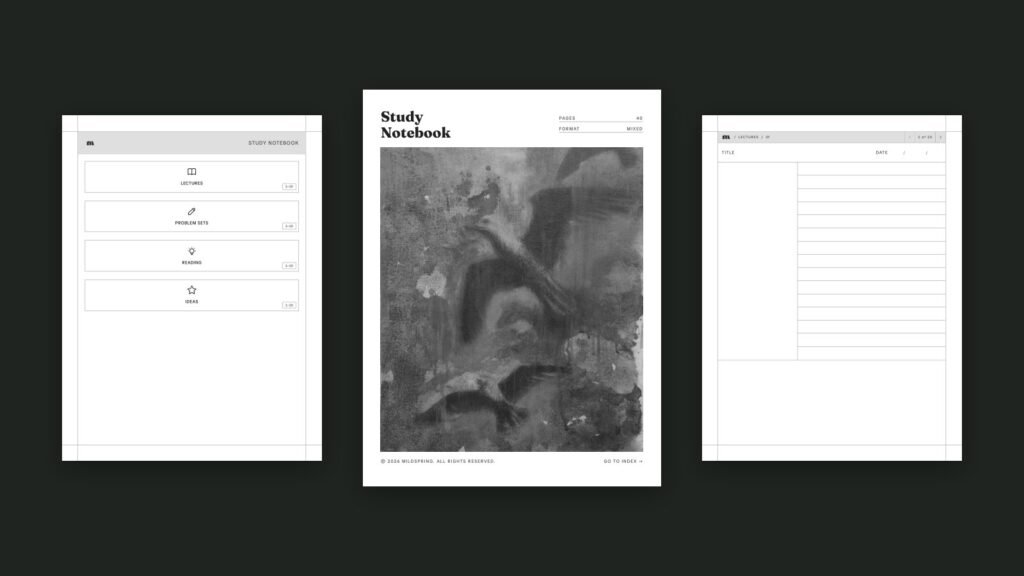
Every planner and notebook we make keeps a margin on both the left and the right of each page, about 10 mm on the Manta and about 8.5 mm on the Nomad. That way the toolbar has somewhere to sit on either side, and you don’t lose any lines to it. If you’d rather have that margin on just one side, our custom notebook builder has a Toolbar side setting. Pick left, right, top or bottom, and we keep the margin there and run the page to the edge on the other three, which gives you more room to write.
If you make your own templates, Supernote recommends sizing them at 1920 by 2560 pixels for the Manta and 1404 by 1872 pixels for the Nomad, A5 X and A6 X, then saving them as PNG or JPG in the MyStyle folder.
What changed in October 2026
Supernote’s Chauvet updates in October 2026 added toolbar customization for notes and documents on all four models, according to the Manta and Nomad changelog. Similar tools are now grouped together on the main toolbar, so it takes up less space, and you can long-press with the pen in different parts of the screen to bring up the tools you use most. If you haven’t updated in a while, it’s worth doing, since a smaller toolbar covers less of the page.
Is the Supernote toolbar covering template lines still?
Our help page on when the toolbar covers your writing explains the margins in each of our files. If you bought from us and the toolbar still sits on your writing, email hi@mildspring.co with your Supernote model and which side the toolbar is on, and we’ll help you find the right file. Or browse our Supernote templates, sized for the Manta and Nomad with room for the toolbar built in.