Margins in our ready-made files
Every ready-made notebook, planner and puzzle book keeps a margin on both the left and the right side of each page, about 8.5 mm on most devices and about 10 mm on the Supernote Manta. It’s there so a side toolbar doesn’t sit on top of your writing, whichever side your tablet puts it on.
Choose the side yourself
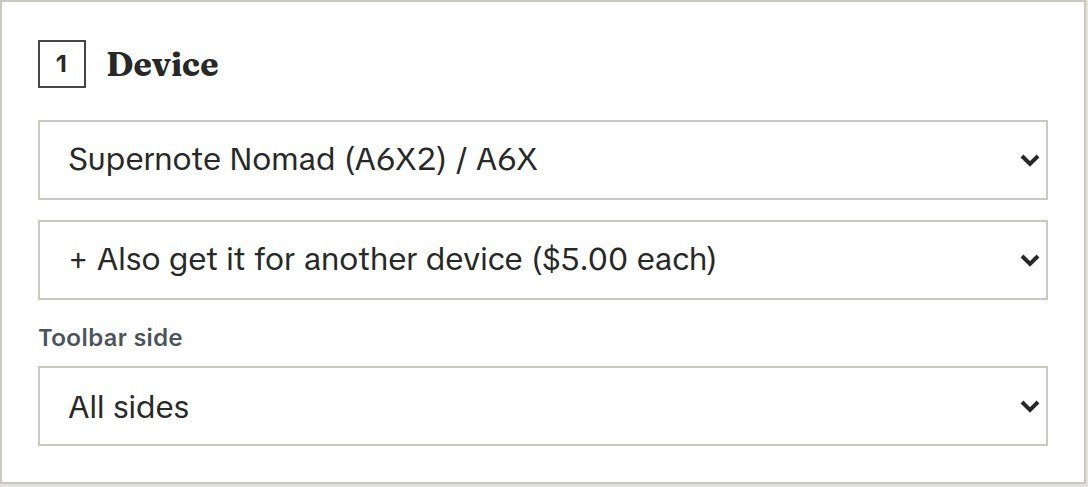
Our custom notebook and custom planner builders have a Toolbar side option. Pick the side your toolbar sits on (left, right, top or bottom) and we keep a margin on that side only and run the page to the edge on the other three, which gives you more room to write. If you’re not sure, pick All sides.
Hide or move the toolbar on your tablet
Most tablets let you hide the toolbar or move it while you write, which is often the quickest fix. Check your tablet’s manual for the exact steps. On a Supernote, for example, Supernote’s user manual describes these options:
- Hide it: double-tap the screen with two fingers, or tap the hide button on the toolbar. Do the same to bring it back.
- Move it: drag the toolbar to the top, bottom, left or right edge, so it sits in the margin instead of on your lines.
- Make it float: press and hold the docked toolbar for a second or two until an arrow appears, then drag it onto a blank part of the page.
- Hide the page number bar: a one-finger double tap hides it, if it covers the bottom of a page.
Our guide to the Supernote toolbar covering your template goes through each of these step by step, including the settings that turn the gestures on.
Which side should the margin be on?
If you’re right-handed, a toolbar on the left keeps it away from your writing hand, and the left margin in our files gives it somewhere to sit. If you’re left-handed, some tablets let you set your writing hand in their settings. On a Supernote, it’s under Settings, then Display & Input, then Gestures, then Hand Dominance. Our files keep a margin on both sides, so they work either way without changing anything.
Still in the way?
Contact us with your tablet model and which side the toolbar is on, and we’ll help you find the right file.