Multi-Section Notebook for reMarkable
$14
One-time purchase, lifetime access.
Also available for
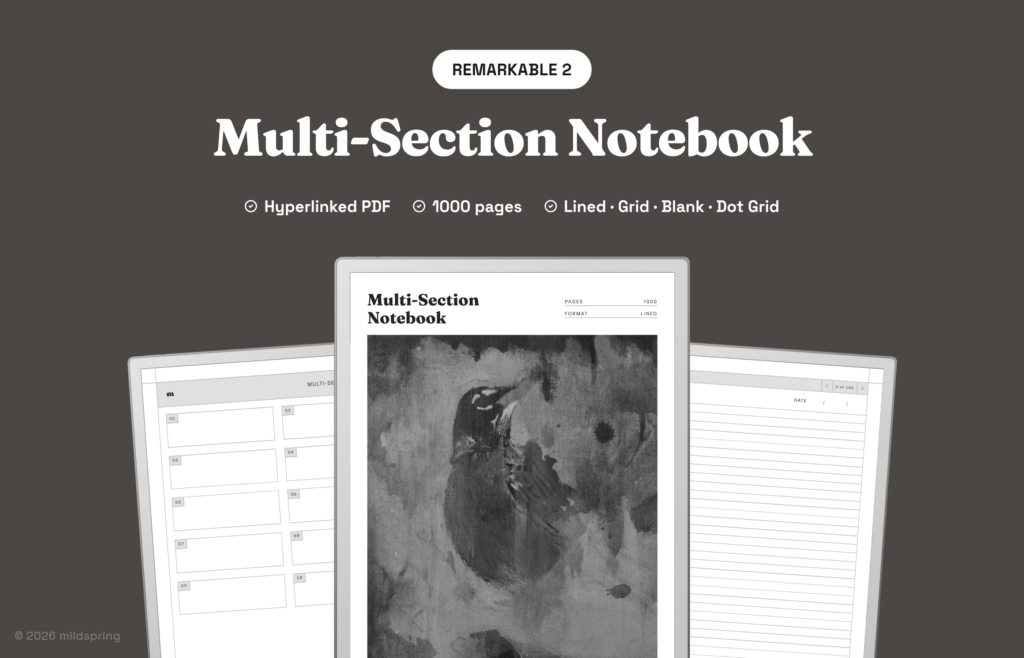
A hyperlinked PDF for reMarkable with 10 numbered sections and 1,000 writing pages. Four page styles included as separate PDFs: Lined, Blank, Dot Grid, and Grid.
The Multi-Section Notebook for reMarkable is a hyperlinked PDF for people who run several threads of work on one tablet and want them kept honestly separate. It is the multi section notebook remarkable buyers pick when client notes, study notes, meeting logs, and personal writing should not share one contents page. You get 1,000 writing pages in ten sections of 100 pages each, with blank section names you fill in yourself.
The book opens on a collection index listing sections 01 through 10. Tap a section to reach its own index, then tap a row to open that writing page. Every writing page carries a breadcrumb back to the section or the collection index, so jumping between streams is a tap rather than a hunt through a single long scroll.
Rabia paints the cover art for every mildspring product by hand, this one included.
You pick your reMarkable model at checkout and receive four ruling files for that screen: Lined, Blank, Dot Grid, and Grid.
Sized for your reMarkable not resized
We cut this notebook to two page sizes because reMarkable ships two screens. The reMarkable 2 and the Paper Pure both use a 10.3 inch panel at 1404 by 1872 pixels, which comes out to a 157 by 210 millimetre page. The Paper Pro is the 11.8 inch screen at 1620 by 2160 pixels, which works out to 180 by 240 millimetres.
You pick your device at checkout and get the file drawn for that screen. The page lands at native size, so the ruling sits at the spacing we drew it at and the margins stay where we put them. A notebook built for one screen and stretched onto another gets you thin grey lines and a page that floats inside a border, which is the thing we set out to avoid.
If you are on the Paper Pro, one honest note: the screen is colour, and this notebook is not. The pages are drawn in black and grey, so you get the sharper 229 ppi rendering but no colour in the template itself. Your own writing shows up in whatever colour you pick, which is where most people want the colour anyway. Paper Pro Move is not in this listing.
What is inside
- 1,042 pages per file: cover, collection index, forty section index pages, and 1,000 writing pages.
- Ten sections of 100 pages, each with its own four page index of tappable rows.
- A collection index that links to all ten sections from one place.
- Blank section names you write yourself, while the indexes keep the 01 to 10 numbering for links.
- TITLE and DATE fields on every writing page, plus a breadcrumb showing section and page.
- No running page numbers across the whole book. Each writing page shows its place inside the section, such as 22 of 100.
- Four PDFs in the purchase: Lined, Blank, Dot Grid, and Grid, each a complete 1,000 page notebook for the model you chose.
How a multi section notebook remarkable file is organized
reMarkable makes it easy to start a new notebook and harder to keep related notes findable six weeks later. This file is one document that behaves like ten notebooks with a shared front door. Name the sections once, then keep returning to the same streams instead of scattering dated files across the library.
Inside each section, every index row is one writing page. That differs from our Classic Notebook, where each entry spans five pages for topics that run long. Here the unit is a single page with its own title and date field, which suits dated logs, short notes, and lists you want to retrieve by number.
Nothing renumbers as you write. The thousand pages are fixed, empty space stays empty until you need it, and filling section 07 does not shove section 08 sideways. When a section is full, move to another section or download a fresh copy of the same ruling.
How it moves on reMarkable
The file opens in reMarkable’s own reader. There is no companion app to install into the system and nothing to sync beyond the file itself, because a hyperlinked PDF is just a document to the device.
Tap a row on the collection index and you jump to that section’s index. Tap a numbered row and you land on the writing page. Tap the breadcrumb at the top of a writing page and you return up a level. Swipe still turns pages the way it always does, since we have not overridden anything the reader already handles.
The PDF also carries bookmarks for the cover, the collection index, and each section index, so reMarkable’s own navigation panel gives you a second way in without hunting for a page number. That outline is useful when you are bouncing between three active sections in one sitting.
The four page styles
Lined is a tight ruling meant for text, and it fits more lines to the page than a paper notebook usually would, which suits writing with a stylus on a 10.3 or 11.8 inch screen.
Dot Grid keeps the page quiet while still giving you something to line things up against. It is the one to use when handwriting sits next to small tables, layouts, or sketches.
Grid is the small square grid, for anything with real structure: schedules, budgets, plans drawn roughly to scale, or notes you want in columns.
Blank has no ruling at all, only the header, the breadcrumb, and the title fields. Drawing, mind maps, and handwriting that does not want to sit on a line all belong here.
They are four separate files rather than a switcher inside one, so you can put two or three of them on the tablet and treat each as its own notebook.
Getting it onto your reMarkable
Checkout gives you four downloads for the device you picked, one per page style, at a few megabytes each. Save them somewhere sensible on a computer first.
The simplest route with no cloud involved is the USB web interface. Turn it on under Settings and then Storage on the tablet, plug in the cable, open 10.11.99.1 in a browser, and drag the PDFs into the window. The transfer runs over the cable rather than your network, so it works with Wi-Fi off. If the toggle will not enable, it is usually the cable, and swapping it or turning the plug around tends to sort it.
The reMarkable desktop and mobile apps work too, as does the browser at my.remarkable.com, if you would rather have the files sync through your account. Either way they arrive as documents in your library and open the same.
Which of our reMarkable notebooks to pick
We draw five for reMarkable, and they differ in how the pages are divided rather than in how they look. This Multi-Section file is the one when you are running several things at once and want them properly separated.
Pick this Multi-Section Notebook when work, study, and personal notes should not share a contents page. Ten blank-label sections with their own indexes are the shape for that.
Pick the Classic Notebook when you want one long notebook with generous room per entry. A hundred entries at five pages each covers a year of most people’s note-taking.
Pick the Cornell Notes Digital Notebook when the page itself needs structure. Each of its 200 pages carries a cue column, a notes block, and a summary band for lectures and reading you intend to come back to.
Pick the Business Meeting Notebook if most of your writing happens in meetings, since its 200 pages are laid out around attendees, agenda, notes, and action items.
Pick the Bullet Journal for short logged entries. It is 200 dot grid pages set up for rapid logging.
The same Multi-Section Notebook is drawn for other tablets as well, so there are Supernote, Kindle Scribe, and Quaderno versions, each cut to that screen.
What you get at checkout
One purchase at $14, four PDF downloads for the model you pick, and no subscription or expiry. The files are yours to keep and to re-download. If you fill a notebook, download a fresh copy and start again on a clean 1,000 writing pages.
Frequently asked questions
How many pages is it really?
Each file runs 1,042 pages: a cover, a collection index, forty section index pages, and 1,000 writing pages. Four files come with the purchase, so 4,000 writing pages across the set.
Which reMarkable models does this fit?
The reMarkable 2, the Paper Pure, and the Paper Pro. The reMarkable 2 and Paper Pure share a 10.3 inch screen and get the 157 by 210 mm page. The Paper Pro is 11.8 inches and gets a 180 by 240 mm page. Choose your model at checkout. Paper Pro Move is not included.
Does it use colour on the Paper Pro?
No. The template is drawn in black and grey. Your own handwriting appears in whatever colour you select on the device.
Are the ten sections already named?
No. Section labels start blank so you can write your own names. The indexes still list them as 01 through 10 for linking.
How many files do I get?
Four PDFs in one purchase for the model you pick: Lined, Blank, Dot Grid, and Grid. Each one is a full 1,000 page notebook in that style.
How is this different from the Classic Notebook?
Classic is one long book with 100 entries at five pages each. This Multi-Section file splits 1,000 pages into ten named sections with their own indexes.
Can I put more than one page style on the tablet?
Yes. They are separate files, so each one you copy across shows up as its own notebook.
Do I need Wi-Fi or a reMarkable account to use it?
No. You can move the files over with the USB web interface at 10.11.99.1 and no cloud at all, and once a file is on the tablet it opens offline.