The Kindle Scribe built in templates are the first thing most new owners try, and for quick notes they’re fine. They’re free, they’re already in the Notebooks section, and you can start writing in seconds. But they’re simple page backgrounds, not planners. Here’s an honest look at what Amazon gives you, where it stops, and when a hyperlinked PDF planner or notebook makes more sense.
What you get in Kindle Scribe notebooks
When you create a notebook on the Scribe, you pick a template for its pages. Amazon’s launch announcement listed 18 templates, covering the basics such as lined pages, grids, dot grids and a few simple layouts for things like to-do lists. Since software version 5.16.9 you can also set a template for a single page, a few selected pages or the whole notebook, and Amazon’s notebook troubleshooting page says that if a template ever changes or doesn’t display correctly, you can reselect it and reopen the notebook.
Notebooks are where the Scribe’s own writing features live, and they sync with your Amazon account, so they’re a natural home for everyday notes.
What the built-ins do well
- They’re free. Every Kindle Scribe has them.
- They’re quick. Create a notebook, pick a page style, write.
- They fit the screen. They’re made for the Scribe, so they always line up with the edges.
- They’re part of Amazon’s system. Notebooks have their own tab on the Scribe and are backed up to your Amazon account.
Where they stop
- A short list. You choose from Amazon’s set of page styles, and that’s it. Owners and reviewers widely report that there’s no way to add your own templates to the Notebooks list. We couldn’t find an Amazon page that says otherwise.
- No links. Each page uses one template, and you can change it page by page, but nothing links the pages together. There’s no index that jumps to a section and no year page that links to a day, so finding something from three months ago means flicking back.
- No dates or structure. The planning layouts are undated. There are no sections, months or weeks built in.
How a PDF planner or notebook works on the Scribe
A PDF works differently. It isn’t a notebook template. It’s a document you open from your library, and you write directly on its pages with the Scribe pen. The most reliable way to get it there is Amazon’s Send to Kindle, from the web page or the Kindle app, keeping it as a PDF rather than converting it. Since Amazon’s software updates in 2026, some owners also report being able to write on PDFs copied over USB, but Send to Kindle is still the route we recommend.
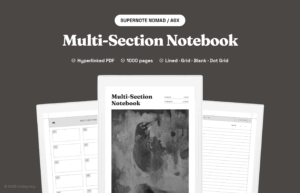
Our PDFs are hyperlinked, so the structure is in the file itself. Our 2027 Daily Planner links the year to every month, week and day, and our weekly and monthly planners link down to each week or month, and every notebook has a tappable index and a breadcrumb on every page. If links ever don’t respond, it’s usually down to how the file was sent or tapping with the pen instead of a finger, and our guide to Kindle Scribe PDF links not working walks through the fixes.
We make two Kindle Scribe sizes: one for the 10.2 inch Kindle Scribe (the 2022 and 2024 models) and one for the 11 inch 2025 models, including the Scribe without a front light and the Colorsoft. Every planner comes with both a Sunday-start and a Monday-start version, and every cover is painted by hand.
When the built-in templates are enough
Stick with the Scribe’s own notebooks if:
- you mostly jot quick notes, lists and ideas;
- you want everything inside Amazon’s notebook system;
- you don’t need to find old pages quickly;
- you’re happy with lined, grid or dot pages and nothing more.
When a hyperlinked PDF makes more sense
A PDF planner or notebook is worth it if:
- you want a full dated year you can move through by tapping;
- you want sections with an index, for work projects, classes or different parts of your life;
- you want a layout the built-in list doesn’t have, like a dated year with linked days, a meeting notebook with an index, or an A to Z index;
- you’d rather open a file that’s already organized than build structure yourself.
You can also mix the two: a Scribe notebook for quick scribbles, and a linked planner for the year.
Common questions
Can I add my own template to Kindle Scribe notebooks? Not as far as we can find. Amazon doesn’t document a way to add templates to the Notebooks list, and owners widely report that it can’t be done. The usual route is to use a PDF instead, which opens as a document you can write on.
Which Scribe file do I need? If you have a 10.2 inch Kindle Scribe (2022 or 2024), pick that size. For any 11 inch Kindle Scribe from 2025, including the Colorsoft, pick the 11 inch file. The screens are different sizes, so the wrong file gets scaled up or down and the lines won’t sit where we drew them.
Can I write in color? On the Kindle Scribe Colorsoft, yes. Our pages are drawn in grayscale so they look the same on every Scribe, and your color ink shows up on top.
Do I lose my writing if I resend the file? A new copy of the file comes without your handwriting, so don’t delete a planner you’ve written in. Send the new copy alongside it instead.
Kindle Scribe built in templates or a planner: test it first
Try a linked file before you decide. Our free samples (just enter your email) give you the first 25 pages of our Multi-Section Notebook and all of January from our 2027 Daily Planner, sized for your Scribe. Send them over with Send to Kindle, use them for a week next to your notebooks, and see which you reach for. When you’re ready, everything we make for the Scribe is on our Kindle Scribe templates page.