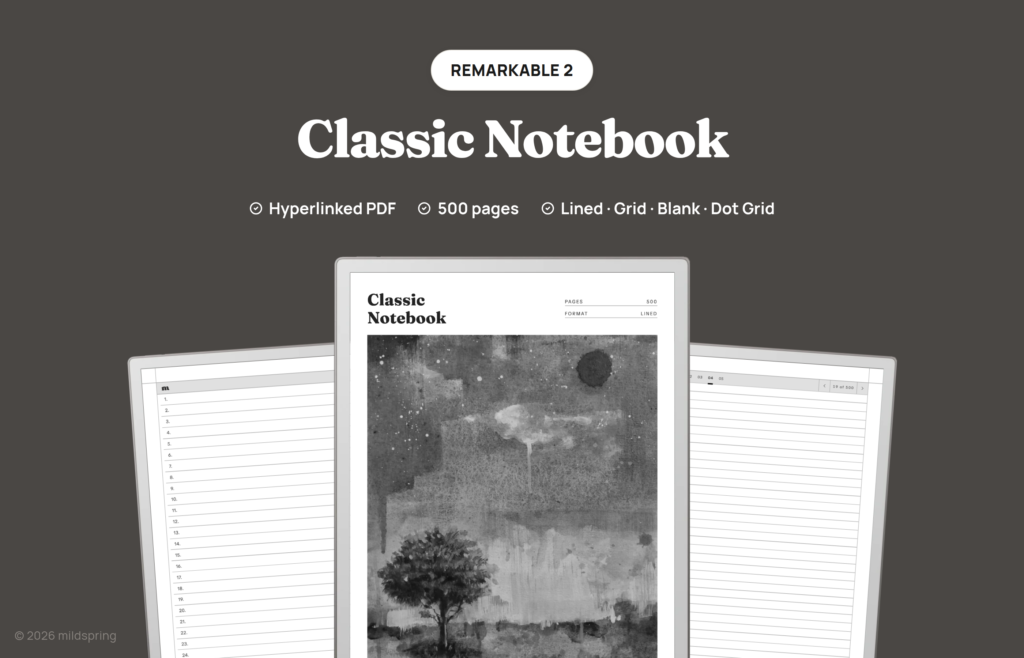
Classic Notebook for reMarkable
$11
- Instant download
- Lifetime access
- Works offline
Save with the bundle
$52 bought separately Get this and 4 more for $35Customize
Want different sections or page styles? Customize this notebook
Also available for






About this notebook
A hyperlinked PDF notebook for reMarkable with 500 writing pages and a linked index. Four page styles included as separate PDFs: Lined, Blank, Dot Grid, and Grid.
The Classic Notebook for reMarkable is a hyperlinked PDF with 500 writing pages, and it’s the notebook to reach for when you want one book that lasts rather than a new file every few weeks. It handles daily notes, project drafts, reading notes, and meeting logs, and it’s undated, so there’s no month printed anywhere telling you that you started late.
It opens on a contents page of 100 numbered entries. Tap one and you land on its first page, and every entry carries five pages, so a thought that runs long has somewhere to go. That’s the difference between a notebook you keep using and one you abandon on page 30.
Rabia paints the cover art for every mildspring product by hand, this one included.
Sized for your reMarkable, not resized
We cut this notebook to two page sizes because reMarkable ships two screens. The reMarkable 2 and the Paper Pure both use a 10.3 inch panel at 1404 by 1872 pixels, which comes out to a 157 by 210 millimetre page. The Paper Pro is the 11.8 inch screen at 1620 by 2160 pixels, which works out to 180 by 240 millimetres.
You pick your device at checkout and get the file drawn for that screen. The page lands at native size, so the ruling sits at the spacing we drew it at and the margins stay where we put them. A notebook built for one screen and stretched onto another gets you thin grey lines and a page that floats inside a border, which is the thing we set out to avoid.
If you’re on the Paper Pro, one honest note: the screen is colour, and this notebook isn’t. The pages are drawn in black and grey, so you get the sharper 229 ppi rendering but no colour in the template itself. Your own writing shows up in whatever colour you pick, which is where most people want the colour anyway.
What is inside
- 505 pages per file. A cover, four contents pages, and 500 writing pages.
- 100 entries at five pages each. Entry 01 covers pages 1 to 5, entry 02 covers 6 to 10, and it runs on to entry 100 finishing at page 500.
- A four page contents index where every row is a tappable link. The first page holds entries 1 to 28, then 29 to 56, 57 to 84, and 85 to 100.
- A title and date field on the opening page of each entry, so you name it and date it yourself.
- A page position strip reading 01 02 03 04 05 on every writing page, so you can see at a glance how much of an entry you’ve used.
- A breadcrumb at the top of all 500 pages that returns you to the contents.
- Four PDFs in the purchase: Lined, Blank, Dot Grid, and Grid, each a complete 500 page notebook.
Why five pages per entry
A one page per entry notebook is fine until the day it isn’t. A call runs forty minutes instead of ten, a draft needs a second pass, or a page of notes turns into a page of notes plus a diagram, and suddenly you’re writing in the margin or breaking the topic across two unrelated entries.
Giving every entry five pages solves that without any bookkeeping on your side. Entry 22 is your reading notes on one book, and it stays that way whether you fill one page or all five. Nothing renumbers, because the 500 pages are fixed and every link points at a fixed page.
The leftover pages aren’t wasted either. Plenty of people use the last page of an entry as a summary, or leave it for whatever they think of a week later.
How it moves
The file opens in reMarkable’s own reader. There’s no companion app, no template to install into the system, and nothing to sync beyond the file itself, because a hyperlinked PDF is just a document to the device.
Tap a row on the contents page and you jump to that entry. Tap the breadcrumb at the top of a writing page and you’re back at the contents. Swipe and the pages turn the way they always do, since we haven’t overridden anything the reader already handles.
The PDF also carries proper bookmarks for the cover and the contents, so reMarkable’s own navigation panel gives you a second way in without hunting for a page number.
The four page styles
Lined is a tight ruling meant for text, and it fits more lines to the page than a paper notebook usually would, which suits writing with a stylus on a 10.3 inch screen.
Dot Grid keeps the page quiet while still giving you something to line things up against. It’s the one to use when handwriting sits next to small tables, layouts, or sketches.
Grid is the small square grid, for anything with real structure: schedules, budgets, plans drawn roughly to scale, or notes you want in columns.
Blank has no ruling at all, only the header, the breadcrumb, and the page strip. Drawing, mind maps, and handwriting that doesn’t want to sit on a line all belong here.
They’re four separate files rather than a switcher inside one, so you can put two or three of them on the tablet and treat each as its own notebook.
Getting it onto your reMarkable
Checkout gives you four downloads, one per page style, at roughly 3 MB each. Save them somewhere sensible on a computer first.
Import them with the reMarkable desktop or mobile app, or drag them into my.remarkable.com in a browser. Either way they arrive as documents in your library, and once they have synced they open offline.
The reMarkable desktop and mobile apps work too, as does the browser at my.remarkable.com, if you’d rather have the files sync through your account. Either way they arrive as documents in your library and open the same.
Which of our reMarkable notebooks to pick
We draw five for reMarkable, and they differ in how the pages are divided rather than in how they look. The Classic is the general one, so start here if you’re undecided.
The Multi-Section Notebook is the one to take when you’re running several things at once and want them properly separated. It divides 1,000 pages into ten named sections with their own indexes, which suits keeping work, study, and personal notes from sharing a contents page.
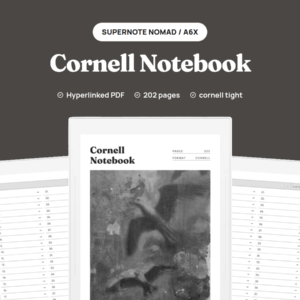
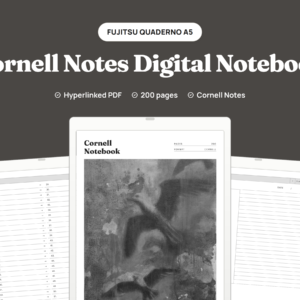
The Cornell Notes Digital Notebook puts structure on the page itself. Each of its 200 pages carries a cue column, a notes block, and a summary band, which is the layout for lectures and for reading you intend to come back to.
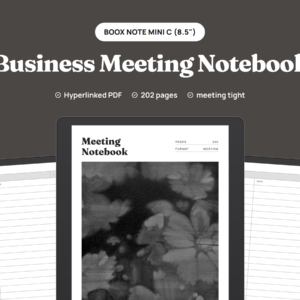
The Business Meeting Notebook suits people whose writing mostly happens in meetings, since its 200 pages are laid out around attendees, agenda, notes, and action items.
The Bullet Journal is 200 dot grid pages set up for short logged entries rather than long ones.
The same Classic Notebook is drawn for other tablets as well, so there are Supernote, Kindle Scribe, and Quaderno versions, each cut to that screen.
Frequently asked questions
How many pages is it really?
Each file runs 505 pages: a cover, four contents pages, and 500 writing pages. Four files come with the purchase, so 2,000 writing pages across the set.
Which reMarkable models does this fit?
The reMarkable 2, the Paper Pure, and the Paper Pro. The reMarkable 2 and Paper Pure share a 10.3 inch screen and get the 157 by 210 mm page. The Paper Pro is 11.8 inches and gets a 180 by 240 mm page. Choose your model at checkout.
Does it use colour on the Paper Pro?
No. The template is drawn in black and grey. Your own handwriting appears in whatever colour you select on the device.
How many files do I get?
Four PDFs in one purchase for the model you pick: Lined, Blank, Dot Grid, and Grid. Each one is a full 500 page notebook in that style.
Is the title and date field on every page?
It’s on the opening page of each entry rather than all five. The remaining four keep the breadcrumb and the page position strip, which leaves the rest of the page clear to write on.
Is it dated?
No, it’s undated. You fill in the title and the date for each entry, so you can start any day and work through the 100 entries in any order.
Can I put more than one page style on the tablet?
Yes. They’re separate files, so each one you copy across shows up as its own notebook.
Do I need Wi-Fi or a reMarkable account to use it?
No. You don’t need a Connect subscription to import PDFs, and once a file is on the tablet it opens offline.
Can I type on these pages with the Type Folio?
reMarkable describes typing with the Type Folio (or the on-screen keyboard) for notebooks, not for the pages of a PDF, and none of its guides shows typing onto a PDF page. Our files are PDFs made for handwriting, so write on them with the Marker.
Delivery and refunds
Delivery
Instant download after checkout. Add the PDF to your device with its companion app or cloud sync. Need help? See our step-by-step guides.
Refunds
Since these are digital files, we can't offer refunds after download. If something is wrong with your file, get in touch and we'll make it right.