The reMarkable built in templates are free, already on your tablet, and good enough for a lot of everyday writing. So before you buy any planner or notebook, from us or anyone else, it’s worth knowing exactly what they do and where they stop. Here’s an honest side-by-side of reMarkable’s own templates and a hyperlinked PDF like ours, and when each one is the better choice.
What the built-in templates are
reMarkable describes its templates as “built-in page layouts you can use in notebooks.” According to its templates help page, they’re grouped into Creative, Grids, Life/organize and Lines. You’ll find ruled pages, grids, music staves, a Cornell notes layout with a cue column and summary area, and simple daily and weekly planner pages under Life/organize.
They’re easy to use. You can pick one when you create a notebook, or change it later by opening the notebook, tapping the layers icon and choosing Template. You can use them in portrait or landscape. If you pay for Connect, you also get extra templates and workbooks through reMarkable Methods.
What they do well
The built-ins have real advantages, and we’d use them ourselves for plenty of things.
- They’re free. Every reMarkable has them, with no subscription or purchase.
- They’re notebook backgrounds. Because they live inside notebooks, you can switch templates whenever you want, and reMarkable’s own notebook features work on them.
- Handwriting conversion works. reMarkable’s help page notes that you can’t convert notes to text in a PDF, so if you rely on turning handwriting into typed text, a notebook with a built-in template is the way to do it.
- They’re always the right size. They’re made for the screen you’re holding, on every reMarkable model.
Where they stop
The limits come from what a template is: a single page design that repeats behind your writing.
- No links between pages. A weekly planner template is one week. It can’t link to a month, a year or an index, so finding an old page means scrolling back through the notebook.
- No dates. The planner templates are undated, so you write in each date yourself.
- No custom templates. reMarkable says plainly that “custom templates are not supported on reMarkable.” You can’t add your own designs to the Templates menu.
- One layout per page. A template doesn’t build structure across a whole notebook, like sections with their own index pages.
How a hyperlinked PDF is different
A PDF like ours isn’t a template. It’s a whole document, and that’s the trade-off. reMarkable imports PDFs as separate documents, so they don’t appear in the Templates menu and can’t be used as a notebook background. You write on the pages directly, and you can’t convert that handwriting to text.
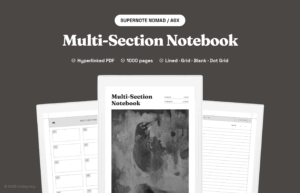
What you get in return is structure. Our 2027 Daily Planner links the year to every month, week and day, so you can reach any date in a couple of taps, and our weekly and monthly planners link down to each week or month. Every notebook has a tappable index and a breadcrumb at the top of every page that takes you back up a level, and our Multi-Section Notebook splits into ten sections you name yourself, each with its own index. reMarkable has followed links inside PDFs since software version 2.6, so this works on any up-to-date reMarkable. Every planner also comes with both a Sunday-start and a Monday-start version, and Rabia paints every cover by hand.
We make two reMarkable sizes: one for the Paper Pro, and one for the reMarkable 2 and Paper Pure, which share a 10.3 inch screen. We don’t make a Paper Pro Move size yet. You pick your tablet at checkout, and the pages keep a margin on both sides for the toolbar.
When the built-in templates are enough
Stick with reMarkable’s built-in templates if:
- you mostly take loose notes, like meeting notes or lecture notes, and don’t need to find old pages quickly;
- you convert your handwriting to text and want that to keep working;
- you like switching layouts page by page;
- you’d rather not spend anything.
When a hyperlinked planner or notebook makes sense
A PDF planner or notebook earns its price if:
- you want a dated planner for the whole year that you move through by tapping, not scrolling;
- you keep notes for several projects or classes and want each in its own section with an index;
- you want a structure that’s already built, so you can open it and start writing;
- you like having one file that holds the whole year in one place.
You can also use both: a hyperlinked planner for dates and plans, and notebooks with built-in templates for everything loose.
Common questions
Can I turn a PDF into a reMarkable template? Not officially. reMarkable’s help page says custom templates aren’t supported, and suggests importing a PDF instead and duplicating it before you write on it, so you keep a clean copy.
Do the links work on the Paper Pro? Yes. Links inside PDFs work on any reMarkable running software 2.6 or later, which includes every Paper Pro, Paper Pure and up-to-date reMarkable 2.
Can I convert my handwriting in a PDF planner? No. reMarkable doesn’t convert handwriting to text in PDFs, only in notebooks. If you need typed text from your notes, keep those notes in a notebook.
Will one file work on every reMarkable? It will open, but it won’t fit properly. The Paper Pro’s screen is a different size from the reMarkable 2 and Paper Pure, so we make a file for each size and you pick your tablet at checkout.
reMarkable built in templates or a planner: try it on your tablet
The easiest way to decide is to try a linked file next to the templates you already have. Our free samples (just enter your email) give you the first 25 pages of our Multi-Section Notebook and all of January from our 2027 Daily Planner, sized for your reMarkable. Use them for a week alongside the built-ins. If you find yourself tapping through the planner, you’ll find the full versions on our reMarkable templates page. And if you’re weighing a subscription too, our comparison of reMarkable Methods and one-time PDFs covers that side.