
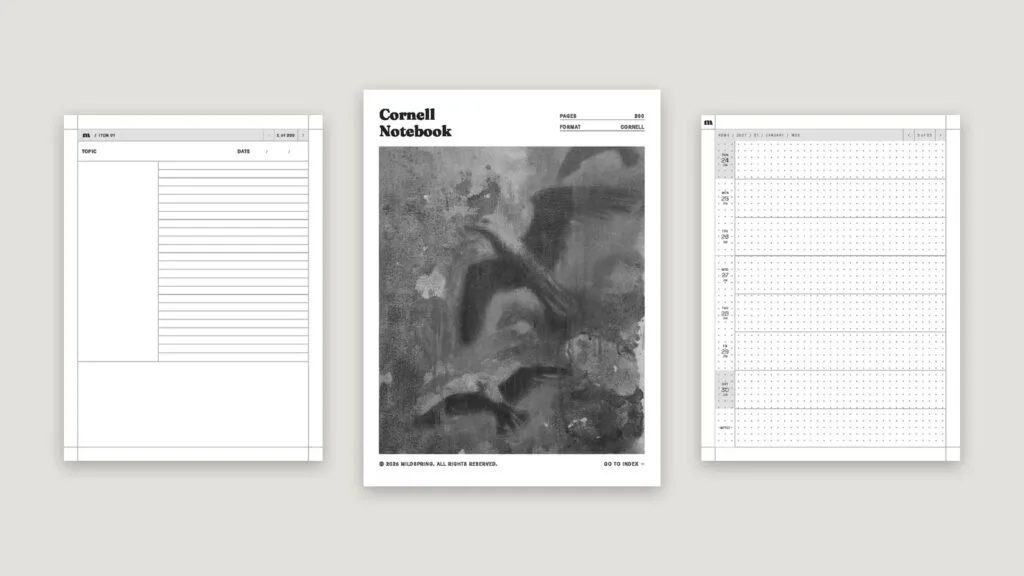
Kindle Scribe templates come in two kinds. There are the page styles built into the Scribe’s own notebooks, like lined, blank and grid pages, and there are PDF templates, such as planners, journals and notebooks, that you send to the Scribe and write on with the pen. The built-in ones are fine for quick notes. For anything with structure, like a dated planner or a notebook with tabs, you’ll want a PDF. Here’s how both work, how to get a PDF template onto your Scribe so you can write on it, and what to look for before you buy one.
The built-in notebook templates
When you create a notebook on the Scribe, you pick a page style for it. Amazon lists lined, blank, grid and planner templates, and you can mix them, so one notebook can hold different page styles. They’re quick to set up and good for everyday notes, lists and sketches.
Where they fall short is structure. A built-in page doesn’t know what day it is, it can’t link to other pages, and it won’t give you a monthly calendar, a meeting layout or a Cornell notes page. That’s the gap PDF templates fill.
What PDF templates add
A PDF template is a file with the pages already drawn. Once it’s on your Scribe, you write on it with the pen like any other page. A good one gives you things the built-in templates can’t:
- Dated pages. A planner with every day, week and month of the year laid out.
- Special layouts. Cornell notes, meeting notes, habit trackers, reading logs and more.
- Links between pages. Tap an index entry, a tab or a date and jump straight to that page.
- Sections. A notebook with separate parts for work, home and projects, each with its own index.
How to put Kindle Scribe templates on your tablet
Use Amazon’s Send to Kindle. It’s the most reliable way to be able to write on the pages, and it keeps the file in your Amazon library, so it’s backed up. There are three ways to send:
- On the web: go to amazon.com/sendtokindle, sign in with the account your Scribe uses, and drag the PDF onto the page. Files can be up to 200 MB.
- From your phone: open the PDF, share it to the Kindle app and send it to your library.
- By email: attach the PDF and send it to your Send to Kindle address. Keep the email under 50 MB, and leave the subject line empty. The word “convert” in the subject turns the PDF into a Kindle book, and its links don’t survive that.
Connect the Scribe to Wi-Fi and the PDF shows up in your library. Our help page on how to send a PDF to Kindle Scribe walks through each option step by step.
One thing to know: since spring 2026, some owners report they can write on PDFs copied over a USB cable too, but Amazon hasn’t documented it. Send to Kindle is still the safer route for a template you’ll use every day.
Writing on a template and using its links
Open the PDF from your library and write on any page with the pen. On the Kindle Scribe Colorsoft, you can write in color. If the pen won’t write on a page, the file most likely didn’t arrive through Send to Kindle, so send it again. PDFs that reached your library before November 11, 2022 can’t be written on either, so send a fresh copy of any old file.
For links, tap with your finger, not the pen. On a page you can write on, a pen tap is often treated as writing, so it leaves a dot instead of following the link. If links still don’t work, our guide to Kindle Scribe PDF links not working covers the other fixes.
What makes a good template for the Scribe
Not every PDF planner is made with the Scribe in mind. Before you buy one, check these:
- It’s sized for your model. The 10.2 inch Scribes (2022 and 2024) and the 11 inch 2025 models have different screens. A file made for your size fills the display instead of leaving empty margins or tiny text.
- It has real links. Open it on a computer and click the index. If nothing happens there, nothing will happen on the Scribe either.
- The page count fits the job. A year of daily pages makes sense in a planner. A notebook with thousands of pages you’ll never use only means more scrolling.
- It reads well in grayscale. Most Scribes don’t have a color screen, so pale colors and thin gray lines can disappear. Good templates use clear black lines that work on any model.
- Every page is numbered and in order. If a link ever lets you down, you can still reach any page by turning pages.
Which templates to start with
It depends what you use the Scribe for. A few common starting points:
- For planning your days: a dated daily or weekly planner for the year, with a calendar and linked months.
- For work: a meeting notebook, so each meeting gets its own page with attendees, notes and actions.
- For study: a Cornell notes notebook, with a cue column and a summary box on every page.
- For everything else: a multi-section notebook or a bullet journal, so all your notes live in one linked file.
Start with one. It’s easy to send five templates and use none of them. Pick the one that matches what you already write down most, use it for a couple of weeks, then add another if you need it.
Questions
Can you add your own templates to Kindle Scribe?
You can use any PDF template by sending it with Send to Kindle and writing on it. The page styles inside the Scribe’s own notebooks are the ones Amazon provides.
Do links work in Kindle Scribe PDFs?
Owners report they do in PDFs sent with Send to Kindle, as long as you tap with your finger. Amazon’s help pages don’t describe link behavior, so there’s no official guide.
Do I need a different template file for each Scribe?
For the best fit, yes. The 10.2 inch Scribes from 2022 and 2024 and the 11 inch 2025 models have different screen sizes, so a file drawn for one won’t quite fill the other. When you buy, pick the version for your model.
Do templates work on the Kindle Scribe Colorsoft?
Yes. Send them the same way, with Send to Kindle, and write on them with the pen, in color if you like. Use a template made for the 11 inch 2025 size, since the Colorsoft shares it.
Why can’t I write on my PDF?
It most likely didn’t arrive through Send to Kindle, or it’s an old copy from before November 11, 2022. Send a fresh copy through Send to Kindle.
Looking for templates made for your Scribe? Our Kindle Scribe templates are hyperlinked PDFs in two sizes, one for the 10.2 inch Scribe and one for the 11 inch 2025 models, including the Colorsoft. They include planners, a meeting notebook, Cornell notes, a bullet journal and more, each with linked indexes and numbered pages. Amazon’s own guide to sending PDFs to your Kindle has more on the Send to Kindle options.
