Cornell Notes Digital Notebook for Kindle Scribe
$9
One-time purchase, lifetime access.
Want different sections or page styles? Customize this notebook
Also available for
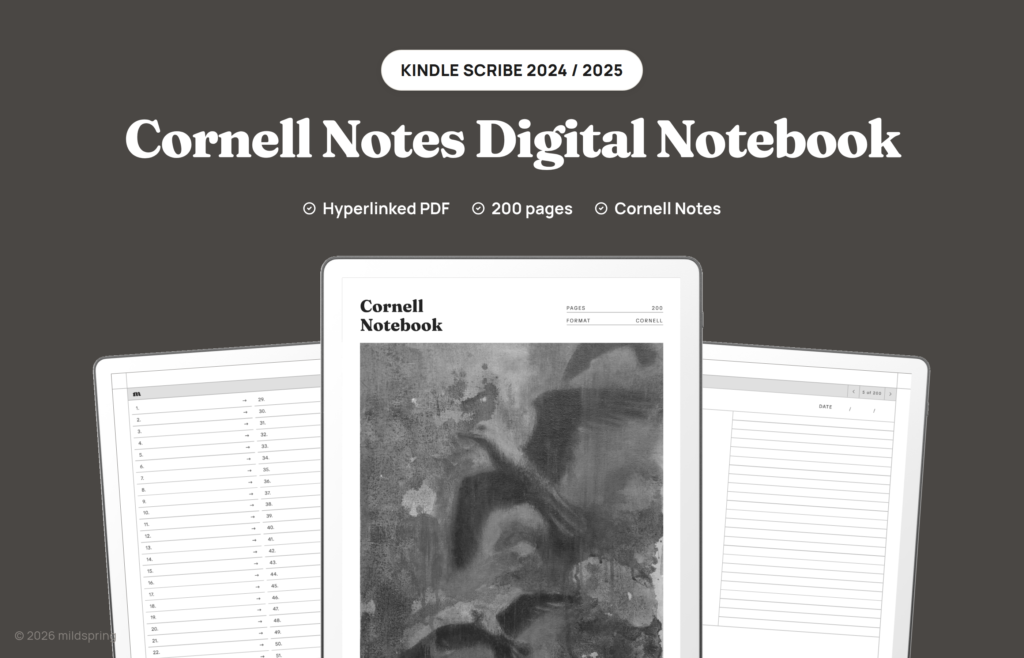
200 Cornell-method pages for Kindle Scribe: cue column, notes, and a summary band, plus a linked index. Sized for the 10.2 inch Scribe.
The Cornell Notes Digital Notebook for Kindle Scribe is a cornell notes Kindle Scribe PDF with 200 pages that keep the classic three-zone layout in place: cue column on the left, lined notes on the right, summary band along the bottom. People reach for it for lecture notes, textbook reading notes, and course review, and because it’s undated the first page doesn’t care whether your term starts in January or August.
Open the file and you land on a Notes Index with two hundred numbered rows. Tap one and you’re on that page. Every page has a topic and date field you write yourself, and a breadcrumb that jumps back to the index. It’s one PDF sized for the Scribe you actually own, not a bundle of rulings to sort through.
Rabia paints the cover art for every mildspring product by hand, this one included.
What is inside
- 205 pages total: one cover, a four page Notes Index, and 200 Cornell writing pages.
- 200 entries, one page each, numbered 01 through 200.
- Cue column, notes block, and summary band on every writing page, using our cornell-tight template.
- Topic and date fields at the top of each page so you name the lecture or chapter yourself.
- A breadcrumb on every page that returns you to the Notes Index.
- PDF bookmarks for the cover and the index, visible in the Scribe’s navigation panel.
Why Cornell on a Kindle Scribe
The Scribe already spends a lot of time as a reading device. That makes it a natural place to keep reading notes next to the book you just closed, and Cornell is the layout that turns those notes into something you can review a week later without rereading the chapter.
During a lecture or a video class, the notes block takes the continuous handwriting. The cue column stays quiet until something earns a keyword or a question. After class, the summary band is where you write the sentence you’d want if the rest of the page went missing. That sequence is older than any tablet, and the page keeps the three places in the same spot so your hand learns where each job lives.
Because each entry is one page, a busy course week might use eight or ten pages while a lighter week uses two. You don’t have to plan five page chapters in advance. You start a new page when the topic changes, fill in the topic field, and leave the rest of the notebook alone.
How the three zones work on the page
The left cue column is narrow on purpose. It holds short prompts, not paragraphs. A chapter title, a definition name, a question you still can’t answer, a page number from the textbook. When you come back later, that column is the map.
The right notes block is the lined writing area. On the Scribe’s 10.2 inch screen it has enough width for real sentences while still leaving the cue strip usable. We drew the ruling tight so a full lecture can stay on one page more often than it spills onto the next.
The summary band sits under both columns. Write it when the session ends. If you skip it, the page still works as ordinary notes. If you fill it, review gets faster because the bottom of every page holds the short version.
Nothing on the page is dated for you. The topic and date fields are blank until you write in them, so a gap in your schedule doesn’t leave a row of empty calendar days staring back.
How cornell notes Kindle Scribe navigation works
Everything runs in the Kindle Scribe’s own PDF reader. There’s no companion app and no special template installer, because a hyperlinked PDF is just a document to the device.
Tap a row on the Notes Index and the reader jumps to that page. Tap the breadcrumb at the top of a writing page and you’re back at the index. Swipe still turns pages the normal way. The bookmarks in the file give you a second route to the cover and the index through the Scribe’s own panel.
That matters when you’re jumping between a dense week of lectures. The Notes Index is four pages of numbered rows, so finding lecture 47 is a tap rather than a long flick through handwriting.
Made for the Kindle Scribe
This version is sized for the Kindle Scribe (2024, 10.2 inch), the second generation model. The page is 157 by 210 millimetres, which is what the Scribe’s 1860 by 2480 pixel screen works out to at 300 ppi. The page fills the screen at native size, so nothing is scaled up, letterboxed, or cropped, and the Cornell zones sit at the spacing we drew them at rather than whatever a fit-to-screen zoom decides.
That exact fit is also why we don’t sell this file for the 2025 Kindle Scribe. The third generation moved to an 11 inch screen, so a page cut for the 10.2 inch model would be scaled to fit rather than matched to it. If you’re on the 2025 Scribe, wait for us rather than buying this one.
The same notebook is drawn for other screens too, so if you also use another tablet, look at the Supernote, reMarkable, and Quaderno versions, each cut to that device’s own page size.
Which of our Kindle notebooks to pick
We draw five notebooks for the Kindle Scribe, and they differ in how the pages are carved up rather than in how they look. This Cornell file is the one for lectures and reading you plan to revisit.
Pick this notebook when the page needs fixed zones for cues, notes, and a summary. That’s the shape of most study work, and it’s why we kept one page per entry instead of spreading a topic across five blank pages.
Pick the Classic Notebook when you want a long general notebook with five pages per entry and four page styles in the purchase. It’s the everyday writing book, not the study layout.
Pick the Multi-Section Notebook when several streams need their own homes. It divides 1,000 pages into ten named sections with separate indexes.
Pick the Business Meeting Notebook when most pages are meetings with attendees, agenda, notes, and action items.
Pick the Bullet Journal when you want short logged entries on 200 dot grid pages.
They all share the same tap-to-jump navigation and the same 157 by 210 mm page, so the motion from index to page feels familiar whichever file you open.
Getting it onto your Scribe
After checkout you get one download. Save it on a computer first so you have a clean copy outside the device.
From there you can plug the Scribe in with a USB-C cable and copy the file into the documents folder, which is the most direct route and needs no account. You can also use Amazon’s Send to Kindle to get it across without a cable. If you do, send the file as a PDF and don’t let it convert to Kindle format, because the fixed Cornell layout and the tap links are the whole point of the notebook and a converted file loses both.
Once the file is on the device it works offline like anything else in your library, and your handwriting is saved into the document as you write.
What you get at checkout
One purchase, one PDF, $9, and no subscription or expiry. The file is yours to keep and to re-download. If you fill all 200 pages, download a fresh copy and start a clean notebook.
Reading notes next to the book
A common Scribe pattern is to read a chapter in the Kindle library, then open this notebook beside it for the write-up. The cue column holds the chapter heading and a few terms. The notes block holds the paraphrase. The summary band holds the takeaway you would underline if the book allowed it.
Because the notebook is undated and linked, you can keep one Cornell file for a whole course instead of starting a new notebook every Monday. When the midterm arrives, you tap through the Notes Index and skim summary bands first, then open only the pages that still feel thin.
Frequently asked questions
How many pages do I actually get?
205 pages in the file: a cover, four Notes Index pages, and 200 Cornell writing pages.
Which Kindle Scribe does this fit?
The Kindle Scribe (2024, 10.2 inch), the second generation model. The page is 157 by 210 mm to match that screen exactly. The 2025 third generation Scribe has an 11 inch screen and needs a different file, which we don’t offer yet.
Do the links really work on the Scribe?
Yes. The index rows and the breadcrumbs are standard PDF links, which the Scribe’s built-in reader follows on a tap. The file also carries PDF bookmarks for the cover and the Notes Index.
Is it dated?
No. Every page has a topic and date field you fill in yourself, so you can start on any day and use the 200 pages in any order.
How many files come with this?
One PDF. Cornell is the page style, so there is no separate lined or blank download in this purchase.
Can I use Send to Kindle?
Yes, as long as you send it as a PDF and leave conversion off. A converted Kindle-format file drops the fixed page layout and the tap links.
What belongs in the cue column versus the summary band?
Put short keywords and questions in the cue column while you write. Put the short after-session recap in the summary band at the bottom.
Do I need an app or an internet connection?
Neither. It opens in the reader the Scribe already has, and once the file is on the device it works offline.