A to Z Index Book for Kindle Scribe
$14
One-time purchase, lifetime access.
Also available for
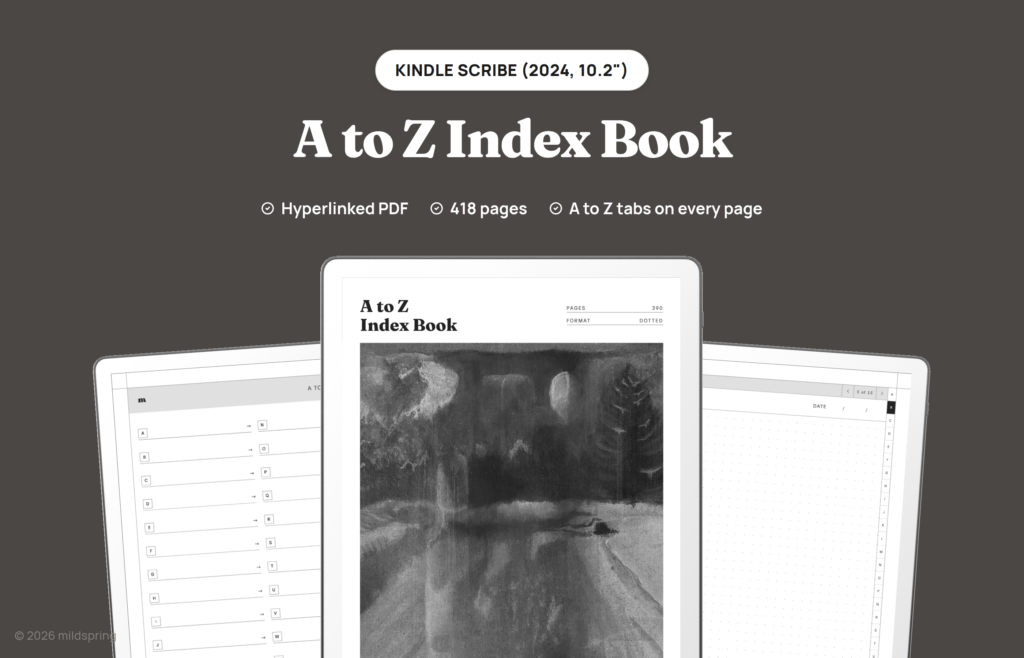
A hyperlinked A to Z index PDF for the Kindle Scribe (2024, 10.2 inch), with 26 letter indexes, an A to Z tab strip on every page, and 390 dotted pages.
A to Z Index Book for Kindle Scribe is a hyperlinked PDF that files your notes by letter instead of by date, the way the alphabet tabs on a paper address book do. We built this A to Z index book Kindle Scribe version for the 10.2 inch Kindle Scribe, and it suits anything you look up by name: people, clients, recipes, words, or books.
Open the book and the main index shows all 26 letters, each with a line where you write what that letter holds. Tap a letter and you land on its own index, which has 15 numbered entries. Tap an entry and you’re on a dotted page that belongs to that one person, recipe, or idea. A narrow A to Z strip runs down the right edge of every index and note page, so jumping from a client under C to a recipe under R is one tap, not a trip back to the front.
The cover painting is by Rabia, who paints the cover art for every mildspring product. This one is a snowy road at night, printed in greyscale for the e-ink screen.
What is inside
- A main index with all 26 letters in two columns, each with a write-on line for naming that letter’s category.
- 26 letter indexes, one per letter, each with a large letter heading, a label line, and 15 numbered entry rows that link to their own pages.
- 390 dotted note pages, one for every entry, with a title and date line at the top.
- An A to Z tab strip on every letter index and note page. The current letter is filled in black so you always know where you are.
- A breadcrumb and page arrows at the top of each note page, so you can step through a letter’s entries or go back to its index.
- Bookmarks for the cover, the main index, and every letter, for readers that show a sidebar outline.
- 418 pages in total, including the cover.
What people file in it
We kept the pages plain on purpose, because an index book is only as useful as what you decide to put in it. A few ways to set it up:
- Contacts and addresses: one entry per person under their last name, with phone numbers, birthdays, and the name of their dog on the same page.
- Clients and collaborators: a page per client with meeting notes, rates, and what you promised them, which turns the book into a small personal CRM.
- A commonplace book: quotes and passages filed by author or theme, so the good lines don’t get lost in a daily journal.
- Research and reading notes: one entry per source, concept, or book, filed by author or title.
- A vocabulary log: new words or field terms filed by their first letter, with examples and definitions on the dotted page.
- Recipes: filed by dish name, ingredient, or cuisine, whichever way you think when you’re hungry.
How the a to z index book Kindle Scribe links work
Everything runs in the Kindle Scribe’s built-in reader. There’s no app to install and no account to connect, because the links are part of the file itself. The tabs, the index rows, and the breadcrumbs are ordinary links that follow a tap.
Each letter gets the same fixed 15 pages, so nothing renumbers when you skip around. If you add the Smiths before the Abbotts, both land on their own page and stay there.
Made for the Kindle Scribe
This version is sized for the Kindle Scribe (2024, 10.2 inch), the second generation model. The page is 157 by 210 millimetres, which is what the Scribe’s 1860 by 2480 pixel screen works out to at 300 ppi, so it fills the screen at native size with nothing scaled, letterboxed, or cropped.
That exact fit is also why we don’t sell this file for the 2025 Kindle Scribe. The third generation moved to an 11 inch screen, so a page cut for the 10.2 inch model would be scaled to fit rather than matched to it. If you’re on the 2025 Scribe, wait for us rather than buying this one.
The same book is drawn for other screens too, so if you also use another tablet, look at the Supernote, reMarkable, and Quaderno versions, each cut to that device’s own page size.
Getting it onto your Kindle Scribe
After checkout you get one download. Save it on a computer first so you have a clean copy outside the device.
Plug the Scribe in with a USB-C cable and copy the file into the documents folder, which is the most direct route and needs no account. Amazon’s Send to Kindle works too, but send it as a PDF and don’t let it convert to Kindle format, because a converted file loses the fixed pages and the tap links, and those are the whole point of an index book.
Which of our Kindle Scribe notebooks to pick
Pick this book when you look things up by name. Pick the Multi-Section Notebook when your notes split into a handful of big topics that each need their own contents page, or the Classic Notebook when you want one long general notebook with room to write. If most of your writing happens in lectures or while reading, the Cornell Notes Digital Notebook lays every page out with a cue column and a summary band.
What you get at checkout
One purchase, one file for the model you pick, priced at $14, with no subscription and no expiry. You can re-download it and load it onto your own devices as many times as you need.
Frequently asked questions
How many pages do I get?
418 pages: the cover, the main index, 26 letter indexes, and 390 dotted note pages, one for each of the 15 entries under every letter.
Is this a single PDF?
Yes. One file for the device you choose at checkout.
Does it fit the 2025 Kindle Scribe?
No. This file is cut for the 2024 Kindle Scribe with the 10.2 inch screen. The 2025 model has an 11 inch screen, and we don’t sell a version for it yet.
What happens when a letter fills up?
Each letter has 15 entries and that number is fixed in the file. Busy letters like S or M can fill first. Because every letter has its own label line, you can also give a big topic two letters, for example clients under C and suppliers under S.
Is it dated?
No. Every note page has a title and date line you fill in yourself, so you can start any day of the year.
Do I need an app or an internet connection?
No. Once the file is on your Kindle Scribe, it works offline in the built-in reader.