Bullet Journal for Kindle Scribe
$9
One-time purchase, lifetime access.
Want different sections or page styles? Customize this journal
Also available for
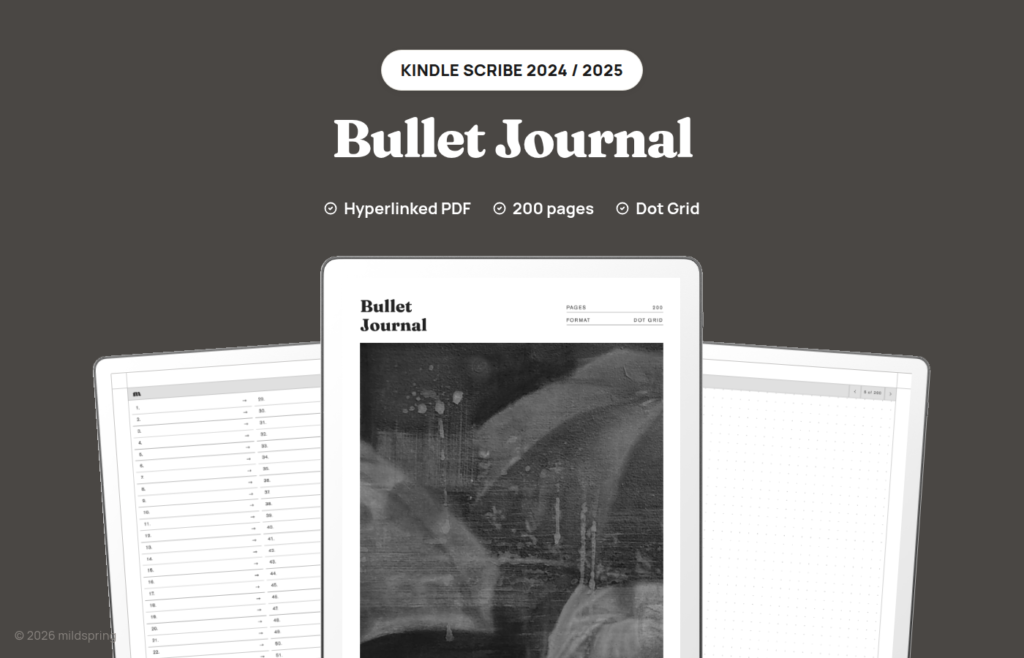
An undated bullet journal PDF for Kindle Scribe: 200 dot grid pages and a linked index. You draw monthlies and collections. We did not print calendars.
A bullet journal kindle scribe workflow needs a quiet page and a way back to the front of the book. This hyperlinked PDF ships 200 undated dot grid writing pages with a Notes index that already points at every sheet, so rapid logging, habit grids, reading collections, and hand-drawn weekly spreads stay findable on the 10.2 inch screen.
Amazon’s built-in notebooks are fine for short notes. This file is for people who want the classic BuJo pattern on the Scribe: short bullets day to day, then larger layouts when a month or a project needs room. Title and date fields stay off so a calendar, a tracker, or a brain dump can use the full writing area without fighting a printed header.
Rabia paints the cover for every mildspring product by hand, and this journal is no exception.
What is inside
- 205 pages total. One cover, a four-page Notes index, and 200 writing pages.
- One Notes section. Two hundred numbered index rows, each linked to a single page.
- A linked index that jumps on tap inside the Scribe’s PDF reader.
- A breadcrumb on every writing page that returns to the index.
- Dot grid ruling only. One download, not a set of alternate rulings.
- No title or date fields printed on the page. Place those marks yourself when a spread needs them.
- PDF bookmarks for cover and Notes index in the Scribe navigation panel.
Blank BuJo pages on a Kindle Scribe
A bullet journal earns its keep when the page stays flexible. You might spend ten pages on dense daily logs, then burn two pages on a habit chart, then leave a gap before a travel collection. Pre-printed planner months fight that rhythm. Dot grid does not.
On the Scribe, stylus handwriting sits cleanly on the dots, and the quiet page helps when lists sit next to small tables. Want a weekly spread? Draw seven columns across two consecutive pages and label those index rows in your own handwriting on the front. Need a monthly log? Block a calendar on one page and keep the facing page for tasks. The links still work because they point at fixed page numbers, not at floating sections that shuffle later.
Nothing renumbers as you go. Page 47 stays page 47 even if you skip it for a week. That stability is why the index matters on a device that otherwise makes you scroll through thumbnails.
Because the file is undated, a restart mid-year does not waste printed January pages. Start on whatever day the stylus hits the glass and treat the 200 pages as a pool rather than a calendar.
How navigation works on the Scribe
Open the file in the Kindle Scribe’s built-in PDF reader. There is nothing to sideload as a template pack and nothing to configure beyond having the PDF in your library.
Tap an index row to jump to that writing page. Tap the breadcrumb to come back. Ordinary swipe gestures still turn pages, which matters when a spread spans two sheets and you want to flip between them without bouncing to the front matter each time.
The navigation panel can also open the cover and the Notes index through the PDF bookmarks we embedded. That helps after a long writing session when you are deep in the later numbers and want a clean route home.
Pinch-zoom still exists on the Scribe, but you should not need it for this notebook. The page is cut to the 10.2 inch panel, so writing at 100 percent keeps the ruling at the pitch we drew.
About this bullet journal kindle scribe size
This version is cut for the Kindle Scribe (2024, 10.2 inch). The page is 157 by 210 millimetres, which matches the 1860 by 2480 pixel panel at roughly 300 ppi. The notebook fills the screen at native size, so the dots keep the spacing we drew and the margins do not collapse under a fit-to-screen zoom.
Do not buy this file for Kindle Scribe Colorsoft, and do not expect it to match an 11 inch 2025-class Scribe. Those screens are a different size, and a stretched PDF loses both the ruling pitch and the feel of a page drawn for the panel. We only sell the cut we have actually exported, which is the 10.2 inch 2024 Scribe.
The same journal is also drawn for Supernote, reMarkable, and Quaderno if you keep more than one tablet.
Getting it onto your Scribe
After checkout you download a single PDF. Keep a copy on your computer before you move it.
The direct route is USB-C: plug the Scribe in and copy the file into the documents folder. No Amazon account step is required for that path, and it is the route we trust most when you care about keeping the PDF untouched.
You can also use Send to Kindle. If you do, send it as a PDF and do not let the service convert it to a Kindle book format. Conversion reflows or flattens the page, and that is how the tap links and the fixed layout disappear. If the send dialog offers a convert option, leave the file as PDF.
Once the PDF is in your library it works offline. Handwriting stores in the document as you write, the same as other PDFs on the Scribe. If you ever need a second volume, download the purchase again and import a fresh copy under a different filename.
Which of our Kindle Scribe notebooks to pick
We publish five notebooks for this device family. Structure is what changes between them.
Choose this PDF when you want a blank, undated BuJo shell with a linked index and room to invent your own spreads on the Scribe.
Choose the Classic Notebook for a long general notebook: 500 writing pages, five pages per entry, and four rulings in one purchase.
Choose the Multi-Section Notebook when you need ten separate sections and about 1,000 pages so work and personal notes do not share one contents list.
Choose the Cornell Notes Digital Notebook when lectures or deep reading need cue, notes, and summary bands printed on every page.
Choose the Business Meeting Notebook when most pages should already look like a meeting form.
All five share tap links and the same 157 by 210 mm page for the 10.2 inch Scribe, so moving between them does not mean relearning navigation.
What writing feels like on the 10.2 inch Scribe
The 10.2 inch panel gives more horizontal room than a pocket notebook and less than a desk blotter, which suits BuJo mixes of lists and small grids. A habit tracker with thirty columns can sit on one page without microscopic boxes, and a daily log still has room for a few longer notes under the bullets.
Because the PDF is sized to the panel, you can leave the Scribe at its default page fit and write without constant zooming. That matters for rapid logging, where stopping to pinch-zoom breaks the pace more than it does during slow sketching.
If you already keep Kindle books and notebooks in the same library, this file shows up as another document. It does not replace Amazon notebooks and it does not need to. Use it as the long-running BuJo beside whatever short notes you still keep in the built-in tools.
What you get at checkout
One purchase, one PDF, $9, and no subscription. Re-download whenever you need a clean volume. There is no lined or grid alternate hiding in the order. Dot grid is the product.
Frequently asked questions
How many pages is the file?
205 pages: a cover, four Notes index pages, and 200 writing pages.
Does it fit the 2025 11 inch Scribe or Colorsoft?
No. This cut matches the 2024 10.2 inch Scribe at 157 by 210 mm. Colorsoft and larger 11 inch models need different files we do not sell here.
Does Send to Kindle work for this?
Yes, if you send the file as a PDF and skip conversion. USB into the documents folder is the simplest path when you want to avoid format surprises.
Are there pre-made monthly pages?
No. You draw monthly and weekly spreads on the blank dots. The linked index is what we provide for navigation.
Why skip title and date fields?
Printed fields steal space from calendars and trackers. On a BuJo page we would rather leave the surface open.
Do links work on the Scribe?
Yes. Index rows and breadcrumbs are ordinary PDF links the built-in reader follows. Bookmarks cover the cover page and the Notes index.
Is the journal dated?
No. Start any day and use the 200 pages in whatever order fits your system.
How many files come with the purchase?
One PDF for the Scribe size we sell. Not four rulings.
Does it need Wi-Fi after import?
No. Transfer can use USB with no network. After the file is on the device it opens offline.