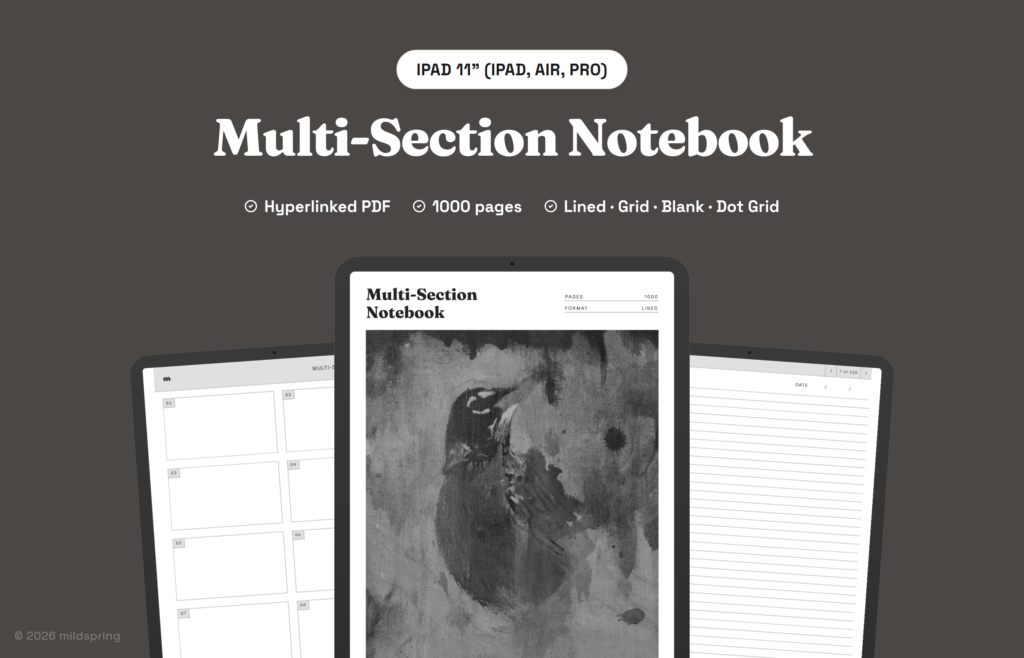
Multi-Section Notebook for iPad
$14
- Instant download
- Lifetime access
- Works offline
Customize
Want different sections or page styles? Customize this notebook
Also available for






About this notebook
A hyperlinked PDF for iPad with 10 sections and 1,000 writing pages, each section with its own linked index. Four page styles included as separate PDFs: Lined, Blank, Dot Grid and Grid.
The Multi-Section Notebook for iPad is a multi section notebook iPad PDF with ten sections of 100 pages, 1,000 writing pages in all. Work, study and personal notes each get their own section, so a client meeting never ends up between two lecture pages.
The file opens on its cover. A collection index links to all ten sections, and each section has its own index of 100 tappable rows. Tap a row and you’re on that page. The bar at the top of every page shows the section and page, and takes you back to that section’s index. You name the sections yourself.
The cover is one of Rabia’s paintings, like every mildspring cover.
Works with five iPad apps
Before listing our iPad notebooks, we loaded them onto an iPad and tapped through them in five apps. The index rows, the arrows and the links back all landed on the right page in each one. A few apps ask a question on import, so here’s what to pick.
- Goodnotes: import it as a new notebook. Links work while the pen is selected. The free plan holds three notebooks, and each page style you import counts as one.
- Notability: import it as a new note and leave Add space on None. The app’s toolbar floats over the top of the page, so scroll down a little to reach the bar.
- Noteshelf: after a link jump, its Return to Page button takes you back to where you were.
- CollaNote: when it asks whether to add space to write, pick None so the pages keep their size.
- Apple Books: already on your iPad, and handy for reading back through a finished notebook.
Sized for iPad not stretched
We drew this notebook at three page sizes, one for each iPad screen shape. The 11 inch file is 158 by 227 mm for the 11 inch iPad, iPad Air and iPad Pro. The 13 inch file is 197 by 263 mm for the 13 inch iPad Air and iPad Pro. The mini file is 118 by 180 mm.
You pick your iPad at checkout and get the file drawn for that screen. There are no blank bands at the top or bottom, and the side margins stay even. Each file is between 4 and 5 MB, since there are over 1,000 pages in each.
What is inside the multi section notebook iPad files
- 1,000 writing pages in ten sections of 100.
- A collection index that links to all ten sections from one place.
- A four page index per section, with a tappable row for every page.
- Blank section names you write yourself, while the indexes keep the 01 to 10 numbering for links.
- Title and date fields on every writing page, and a link bar showing the section and the page, such as 22 of 100.
- Four PDFs in one purchase: Lined, Blank, Dot Grid and Grid, each a complete 1,000 page notebook for the iPad you pick.
How it works
It’s a hyperlinked PDF, one per page style. There’s no extra app to install and nothing to sync. Download it on your iPad, open it from Files and import it into your notes app as a new notebook. Once it’s in, the links work offline.
Name the sections on the collection index the first day, for example Work, Courses, Reading, Ideas and Home. From then on, two taps take you to any page in any section.
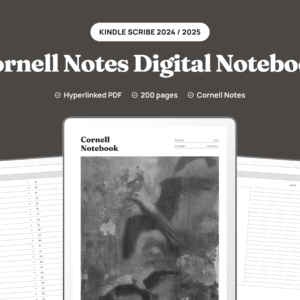
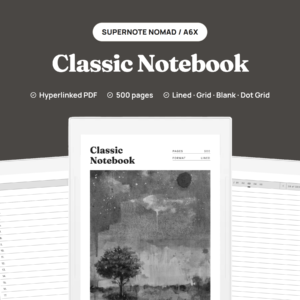
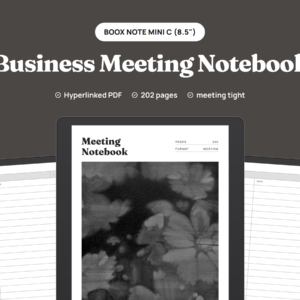
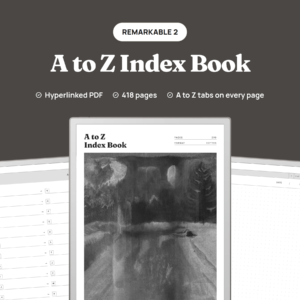
The same notebook is drawn for other tablets too, so there are Supernote, Kindle Scribe, reMarkable and Quaderno versions, each cut to that screen.
Frequently asked questions
Which iPad size do I pick?
The one that matches your screen. Pick 11 inch for the 11 inch iPad, iPad Air and iPad Pro, 13 inch for the 13 inch iPad Air and iPad Pro and mini for the iPad mini. Not sure which you have? Settings, then General, then About shows the model name.
Is a 1,000 page file slow in a notes app?
In our tests on an iPad it opened in seconds and links jumped straight to their page. Large files take longer to import the first time than a short notebook.
Which page style should I import?
Whichever suits the work. You get all four, and you can import more than one.
Will writing on a page set off a link?
Not in our tests. In Goodnotes and Noteshelf, pen strokes over a page stayed as ink. Tap with your finger when you want to follow a link.
A link took me to the wrong page. What now?
Delete the notebook in your app and import the PDF again as a new notebook. If it still happens, email us and we’ll sort it out.
iPad and Apple Books are trademarks of Apple Inc., registered in the U.S. and other countries and regions. Goodnotes, Notability, Noteshelf and CollaNote belong to their makers. mildspring is not affiliated with any of them.
Delivery and refunds
Delivery
Instant download after checkout. Add the PDF to your device with its companion app or cloud sync. Need help? See our step-by-step guides.
Refunds
Since these are digital files, we can't offer refunds after download. If something is wrong with your file, get in touch and we'll make it right.