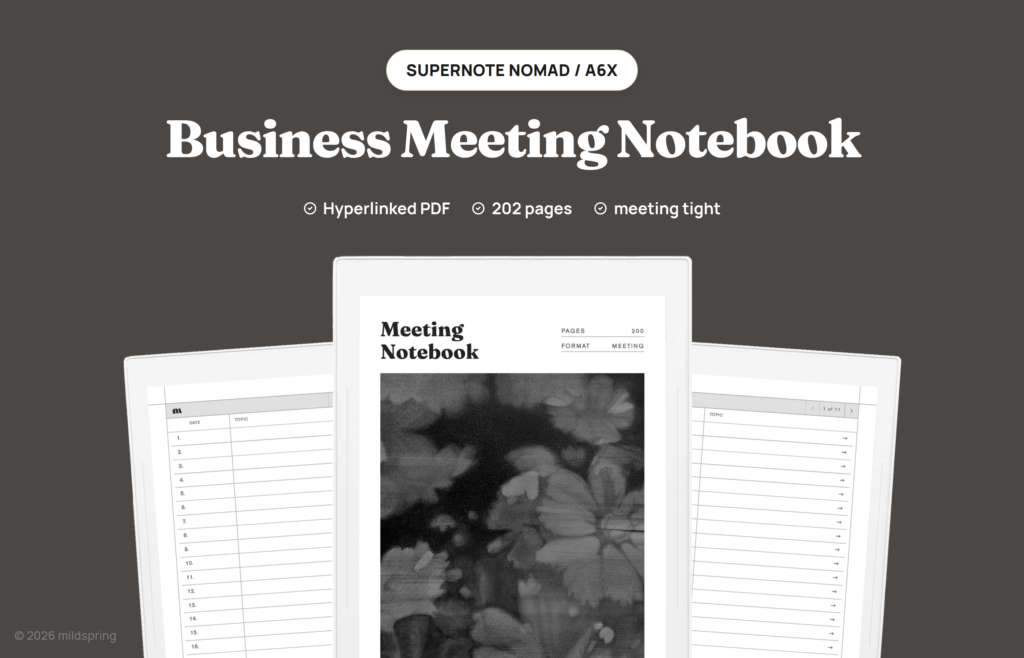
On a Supernote, meeting notes usually land in whatever notebook was already open. A week later the date is a guess, the people in the room are missing, and the follow-ups are stuck in a paragraph you have to reread. We built a dedicated meeting notebook for that mess. This is the Business Meeting Notebook we sell today: 200 pages, one meeting per page, an index you can scan, and a split for notes and action items.
The file is $9 on the product page, a one-time purchase. It comes in two sizes: Supernote Nomad (A6X2 and A6X) and Supernote Manta (A5X2). You pick the size at checkout.
What sits on one meeting page
Each page is one meeting, and we kept it small on purpose. The header has five fields (Topic, Date, Time, Attendees, and Location), then the page splits: lined notes on the left, and an action items panel on the right.
That’s the whole layout. There’s no Agenda field and no Decisions field, because extra boxes eat a Nomad screen until the page starts to feel like a form. We stopped at the fields we actually fill when a call starts: header, notes, action items, index, and breadcrumb.
A standing weekly sync and a one-off vendor call use the same page. Later, the Topic line is what tells them apart on the index. The notes column can look messy; the header and the action panel are the parts we can still read a month later.
A blank note can hold the same handwriting, but it doesn’t keep a fixed spot for who was in the room, and it doesn’t keep the action list from turning into more notes when you run out of space. We wanted the left side to be allowed to wander while the right side stays a list.
The Date and Topic index
The PDF opens on an index, with one row per meeting page. The columns are Date and Topic, and each row links to that page. We use that pair because it’s what we look for when we hunt a meeting from last month: when it happened, and what it was called.
The index stays blank until you write on the meeting pages and copy Date and Topic onto the matching row. The file doesn’t fill it in for you, because the meetings haven’t happened yet. You get a linked table of 200 slots, which means past meetings sit in one place instead of across random notebooks.
Date and Topic are the two things you can scan without opening the page. Page numbers alone don’t tell you whether row 47 was the budget review or the hiring call, and a full sentence in the index row would wrap on a Nomad and slow the scan. Two short columns keep the list readable with a thumb on the screen.
Tap a row and the reader jumps to that page, same idea as any hyperlinked PDF: the tap target lives in the file, and the target is another page in the same PDF.
Header fields at the top
The five fields sit at the top of every meeting page so that information isn’t mixed into the notes. Topic, Date, and Time share the first row. Attendees and Location share the second. We treat them as the record of the meeting, not decoration.
- Topic. The name of the meeting, and also what the index is built to show.
- Date. You write it. The notebook is undated, and there’s no calendar in the PDF, so a January start and a June start look the same.
- Time. Start time, or start and end if you write both on the line.
- Attendees. Names, not a paragraph about what they said. What they said belongs in notes.
- Location. Room, call link, or “remote.” One line.
Undated is a constraint and a feature: you aren’t sitting on unused January pages in November, and you also don’t get a year printed on the cover, so the Date field is the record.
Notes on the left and action items on the right
During the meeting, the left column is the capture area. It’s lined so handwriting stays in rows, and this half is messy on purpose. We use it for what was said, what got rejected, and the context that won’t make sense as a task.
The right side is the action panel, with three columns: Task, In Charge, and Due. One action per row, so every follow-up leaves the meeting with an owner and a date. The split only works if the two sides stay different jobs. When action items leak into the notes, you get a dense page and no list to reopen on Friday. When notes leak into the action panel, it stops being a list you can act on.
After the meeting, the useful pass is short: read the right side, cross off what is done, and leave what is not. The left column is the archive of what was said, and you don’t have to rewrite it.
Opening the PDF on your Supernote
The product is one PDF: download it once, copy it onto your Supernote, and open it in the built-in document reader. There’s no extra app, and you write on the page the same way you write on any other PDF, because the links have to live in the file itself.
Navigation inside the file is the index plus a breadcrumb at the top of every meeting page, and that breadcrumb jumps back to the index. We wrote a short explainer of that trail here: PDF breadcrumbs. The file also carries PDF bookmarks for the cover and the index, so the Supernote sidebar can open them without hunting by page number.
This isn’t the same path as applying a PDF as a note template in MyStyle, which is a Ratta note feature. This notebook is a document you open and write on, and the links live in the PDF.
Ratta’s own document tools (contents, bookmarks, annotations) still sit on top of that. Those are device features, documented here: Using Contents, Bookmarks and Annotations in Documents. The Date and Topic index is ours, printed in the file so you don’t have to build a table of contents by hand.
Sizing and the 200-page limit
There are two files, one per screen: Nomad (A6X2 and A6X) and Manta (A5X2). Each page is drawn for its panel, so the layout isn’t scaled or cropped. Both hold 200 meeting pages. The Nomad file runs to 212 pages in total (cover plus eleven index pages), and the Manta file runs to 209 (cover plus eight index pages), since each Manta index page holds more rows.
200 pages means 200 meetings, and a PDF doesn’t grow when you run out. When the file is full, the next meeting goes in a second copy of the same notebook, or in a new file. The index and the links are already in the PDF, and the page count is fixed.
Two hundred meetings is a long run for one file if you use it for a single recurring series, and a shorter run if every call in the week gets its own page. Either way the limit is visible, because you can see the unused index rows, which is clearer than a notebook that pretends it can grow forever.
How this differs from Cornell notes
We already published a Cornell walkthrough for Supernote. Cornell is a different page: cues on the left, notes on the right, and a summary strip at the bottom. That method is capture, then process, then review, and the Cornell post even names meetings as one place people use it.
This meeting notebook isn’t Cornell with a new title: it’s one meeting per page, with attendees and location in the header, and action items with owners and due dates in their own panel. The index is a list of past meetings by date and topic, not a cue column for later questions.
If you already take Cornell notes in lectures, keep that file. If the job is “who was there, what did we say, what is still open,” this PDF matches that job. Details on Cornell are here: Cornell notes on Supernote.
The Business Meeting Notebook is the file described above, and cover art on every mildspring product is hand-painted by Rabia. If that layout is the one you want on your Supernote, it’s here: Business Meeting Notebook for Supernote.