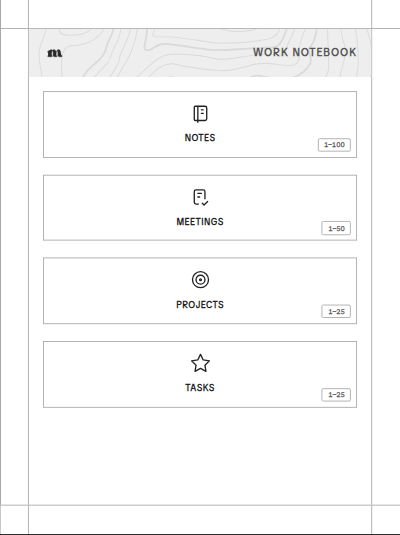
Work notebook
- Notes · Dotted · 100 pages
- Meetings · Meeting Notes (Lined) · 50 pages
- Projects · Kanban (Portrait) · 25 pages
- Tasks · Checklist · 25 pages
Build a custom hyperlinked notebook PDF for your Supernote, reMarkable, Kindle Scribe, Boox, Kobo, Quaderno, or iPad. Pick your tablet, name your sections, and choose a page style for each one.
$19 for one notebook on one tablet, and you can see every page before you pay.
A sample Work Notebook for the Supernote Nomad, rendered by the builder.
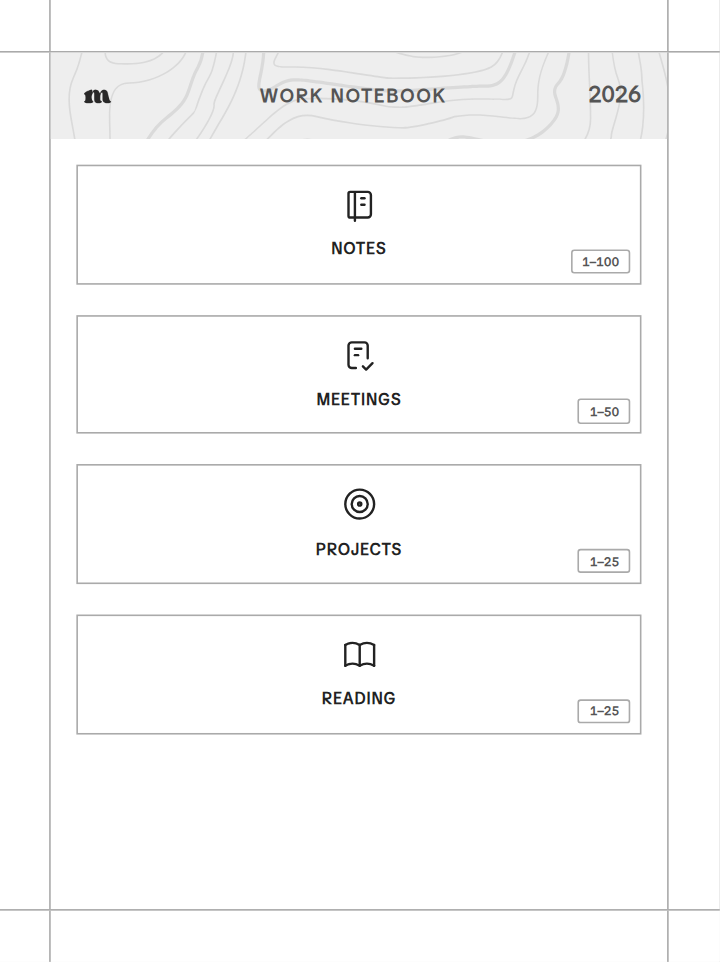
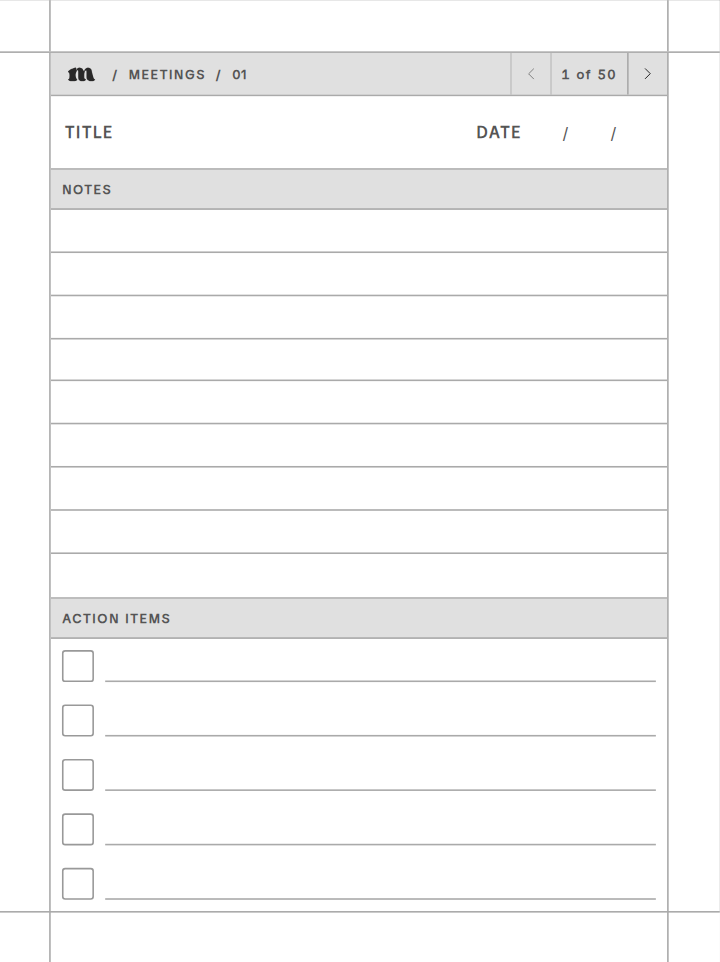
Every notebook is a hyperlinked PDF, so you tap to move around instead of flipping pages. Here is our sample notebook followed from the cover to a page. Each page also links back to the contents page and to its section's index, with arrows to the pages on either side.
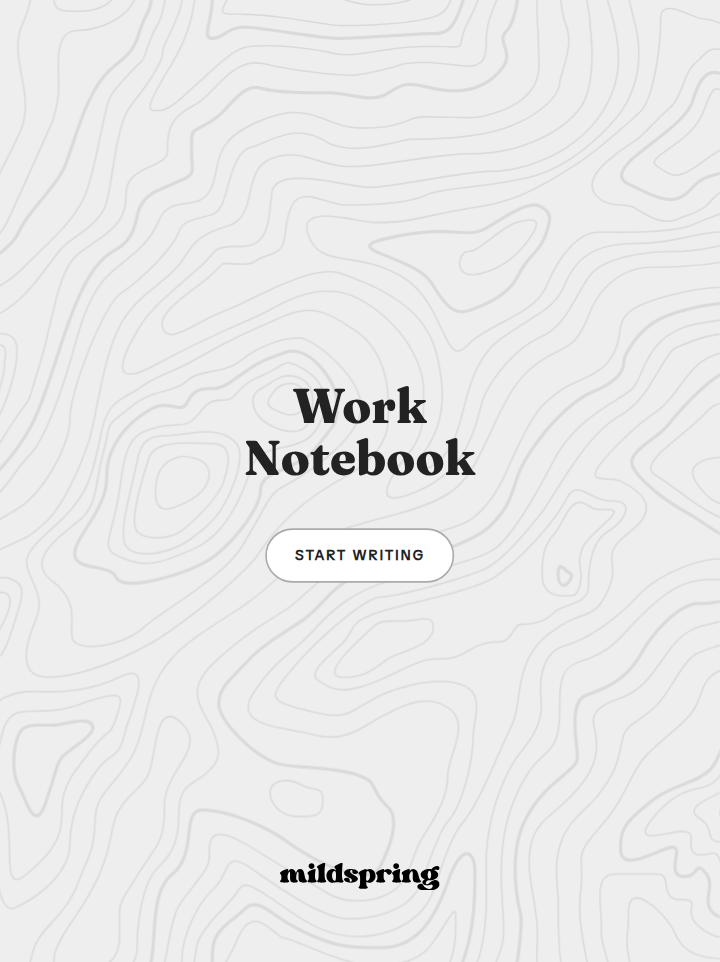
Cover. The Start writing button opens the contents page.
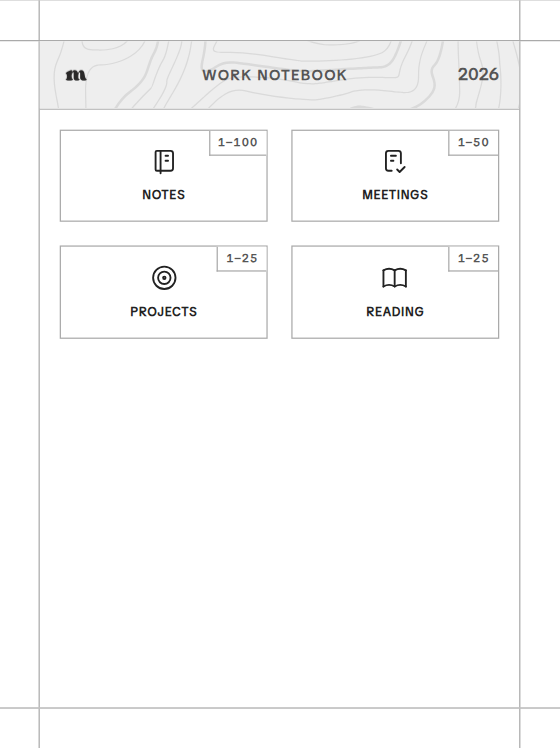
Contents. Each section name opens that section's index.
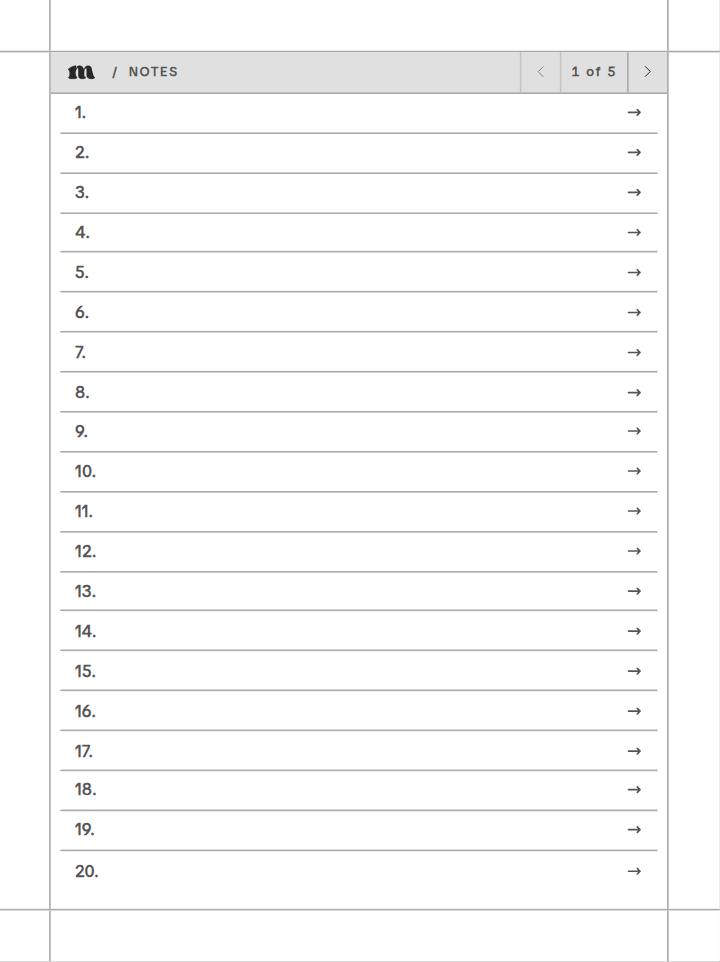
Notes index. Every numbered line links to its own page.
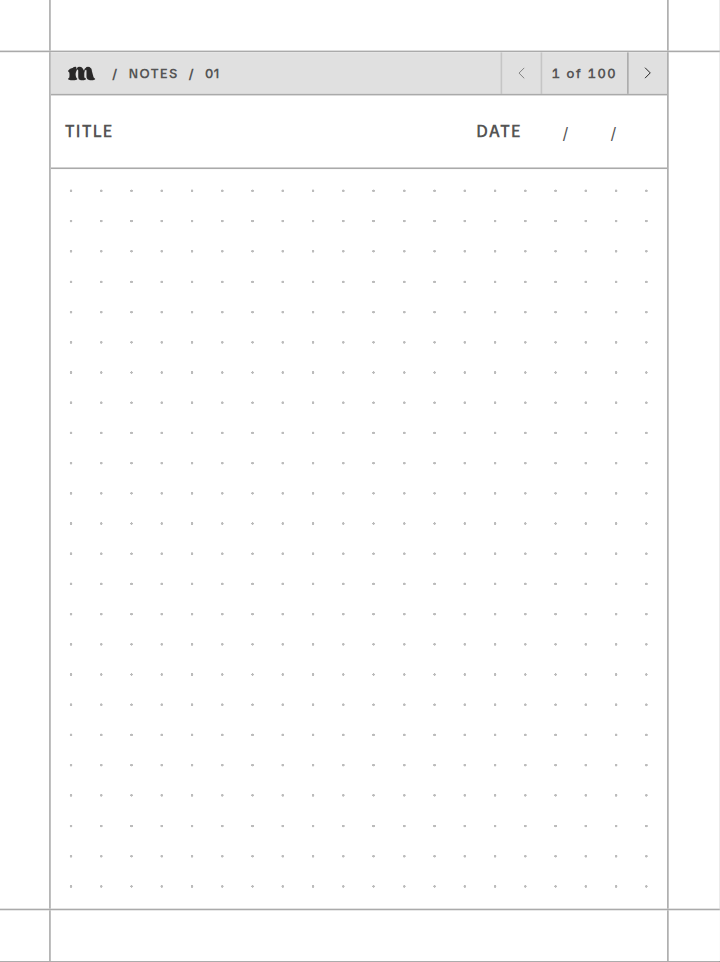
Page 1. Notes in the header leads back to the index.
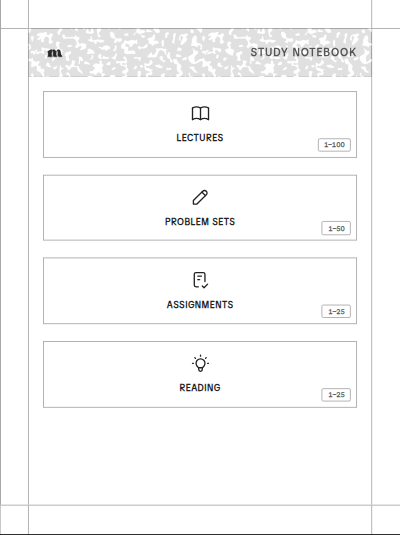
Each setup opens in the builder with these sections filled in. You can rename them, change the page styles, or add more before you check out.
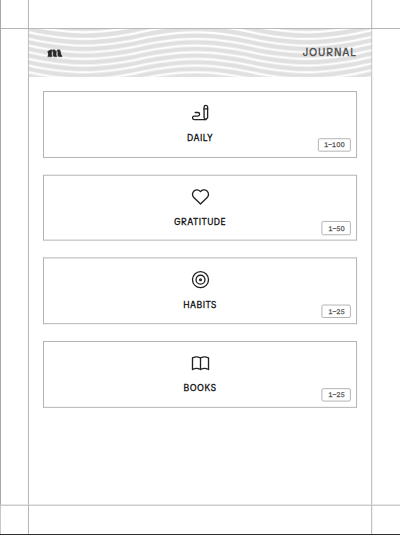
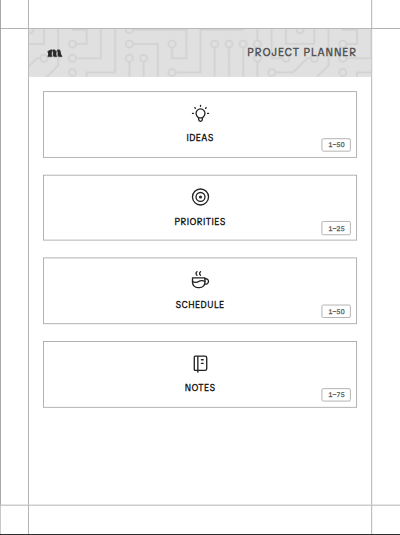
There are 20, and each section of your notebook can use a different one.
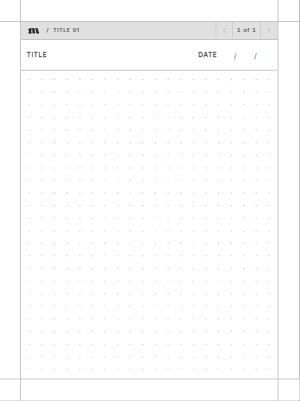 Dotted
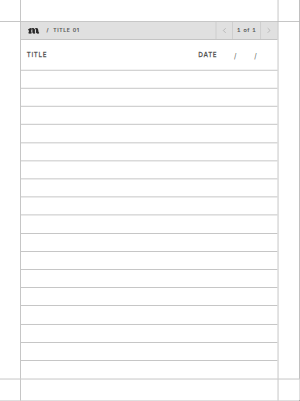 Lined
Lined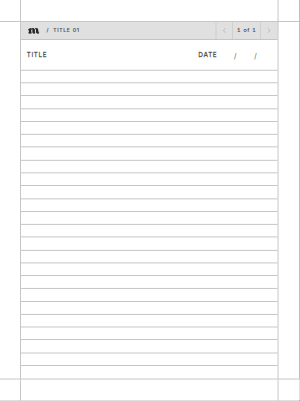 Lined (Tight)
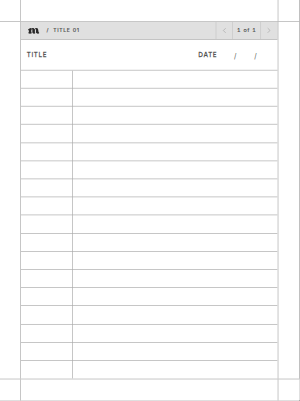 College Ruled
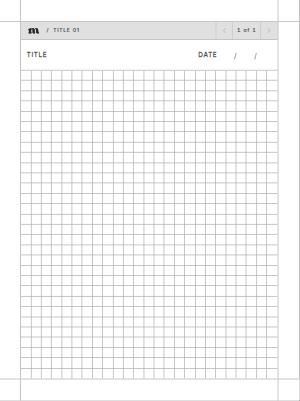 Grid Small
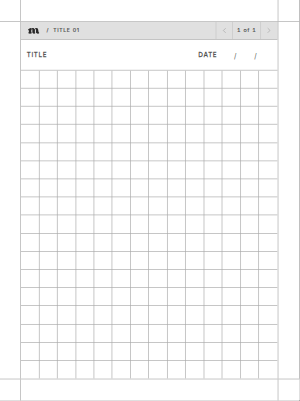 Grid Regular
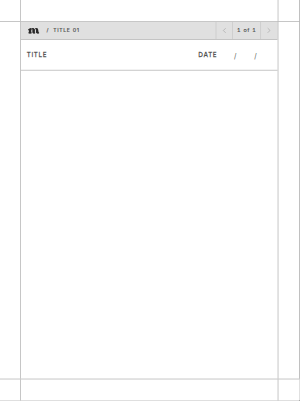 Blank
Blank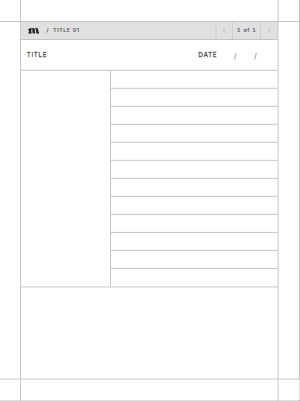 Cornell Notes
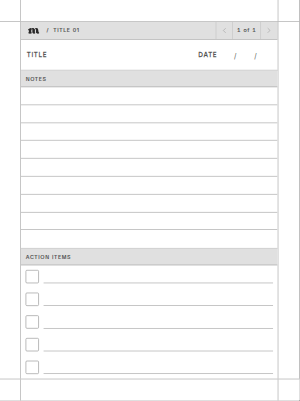 Meeting Notes (Lined)
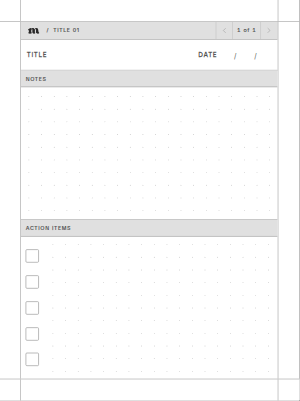 Meeting Notes (Dotted)
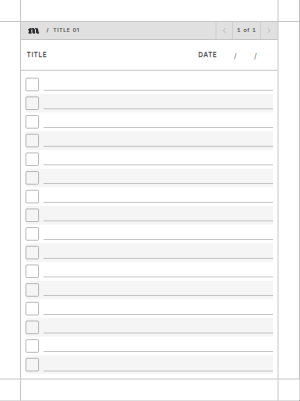 Checklist
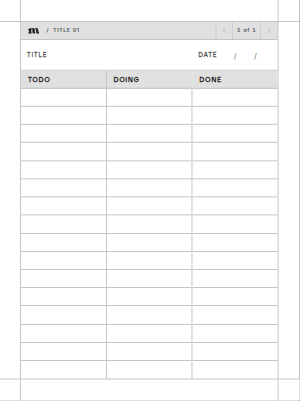 Kanban (Portrait)
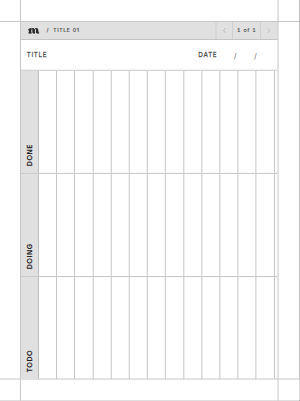 Kanban (Landscape)
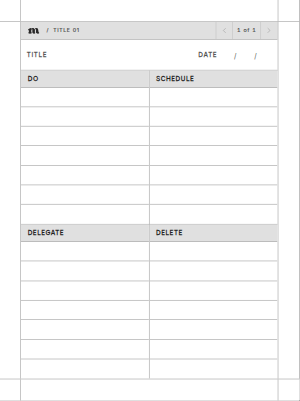 Eisenhower Matrix (Lined)
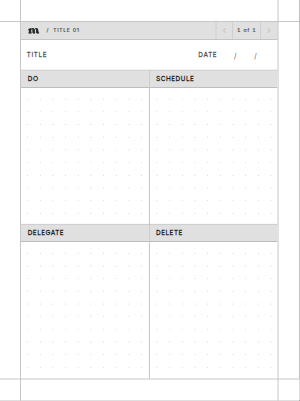 Eisenhower Matrix (Dotted)
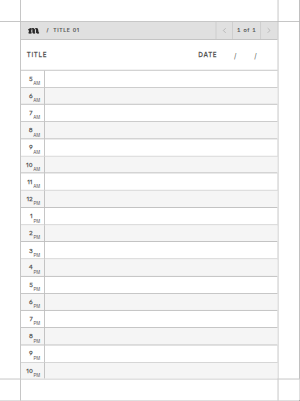 Time Blocker
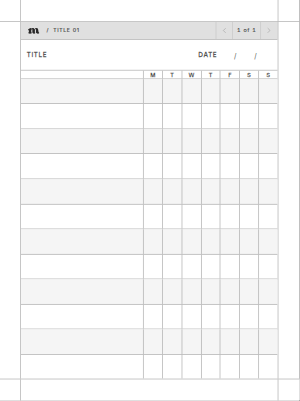 Habit Tracker
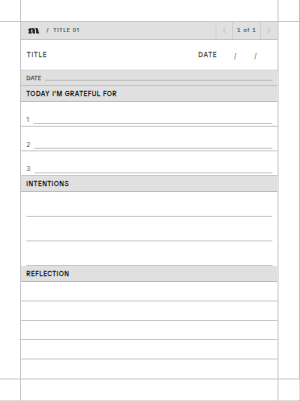 Gratitude Journal
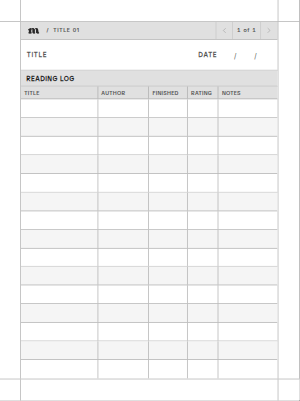 Reading Log
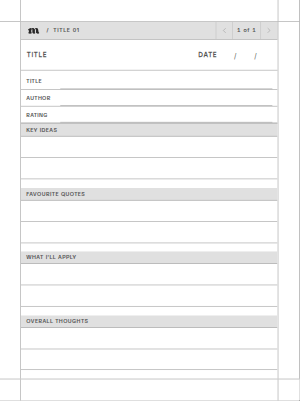 Book Reflection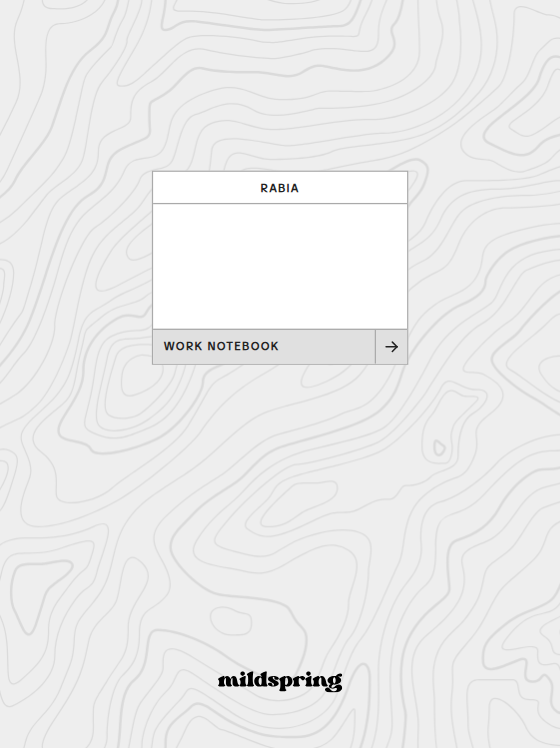
Your notebook PDF is made at the exact page size of the e-ink tablet you pick, so nothing is stretched or cropped. Don't see your brand? Pick one of the two general sizes for 10.3 inch and 7.8 inch tablets with a 4:3 screen.
$19 for one notebook on one tablet, with every option included. If you use more than one tablet, each extra one is $5 and gets its own PDF sized for that screen, so two tablets come to $24 and three to $29. You can add up to 4 extra tablets.
Open the builderA PDF notebook built for the tablet you pick. It opens on a cover that links to a contents page, and every section has its own index that links straight to its pages. You download it from your order page, your order email, and My Account.
We start building it as soon as your payment clears. A full 250-page notebook takes about two minutes per tablet, and your order page updates on its own when the download is ready.
Supernote, reMarkable, Kindle Scribe, Boox, Kobo, Fujitsu Quaderno, and iPad, 18 models in all, plus two general sizes for other 10.3 inch and 7.8 inch tablets with a 4:3 screen. Each PDF is sized for the screen you pick.
Yes. You can add up to 4 more tablets for $5 each, and we build a separate PDF sized for each screen.
A section is a part of your notebook with one page style, like a dotted Notes section or a Meetings section. The builder calls them collections. You can add up to 8, and each one gets a numbered index and its own icon on the contents page.
Up to 250 pages of notes, plus the cover, the contents page, and an index for each section. If you give each index entry three or five pages, those pages count toward the 250.
There are 20: dotted, lined, college ruled, grids, blank, and Cornell for notes, meeting notes, checklists, Kanban boards, Eisenhower matrices, and a time blocker for work, and a habit tracker, gratitude journal, reading log, and book reflection for everything else.
The PDF uses standard internal links, so tapping a contents entry or an index line jumps to that page in any reader that follows PDF links. It also has bookmarks for the cover, the contents, and each section, which show up in readers that display a PDF outline.
Yes. The builder shows your real cover, contents page, section index, and a sample page while you make changes, drawn by the same code that builds your PDF.
Transfer the PDF to your tablet the way your device supports it, using USB, cloud sync like Supernote Cloud, or email.
Since these are digital files, we can't offer refunds after download. If something is wrong with your file, get in touch and we'll make it right.